Journal16 min read
7 Best Auto Caption Generators for Video in 2026
Compare the 7 best auto caption generators for video in 2026, with annual pricing, accuracy limits, burn-in vs SRT, and the best fit for each team.
- Published
- Updated
- Written by
- AllCapStudio

Captions stopped being an accessibility checkbox somewhere around the point feeds started autoplaying muted. They are now the first thing a viewer reads, often the only thing, and a bad set of them costs you the scroll.
You have probably already met the problem. The transcription lands in eight seconds, then you spend twenty minutes fixing your own product name, splitting a line that ran to four rows, and nudging a cue that arrives half a beat late. The generation was never the slow part. The repair is.
The right auto caption generator closes that gap. A good one gets the product names right the first time, lets you split a line or shift a cue in seconds, and hands back the output your platform accepts. Below are seven of them, what each produces, what it costs on annual billing, where the transcription breaks, and which fits the video you are making rather than the one the vendor demos.
Why Auto Captions Became a Production Requirement
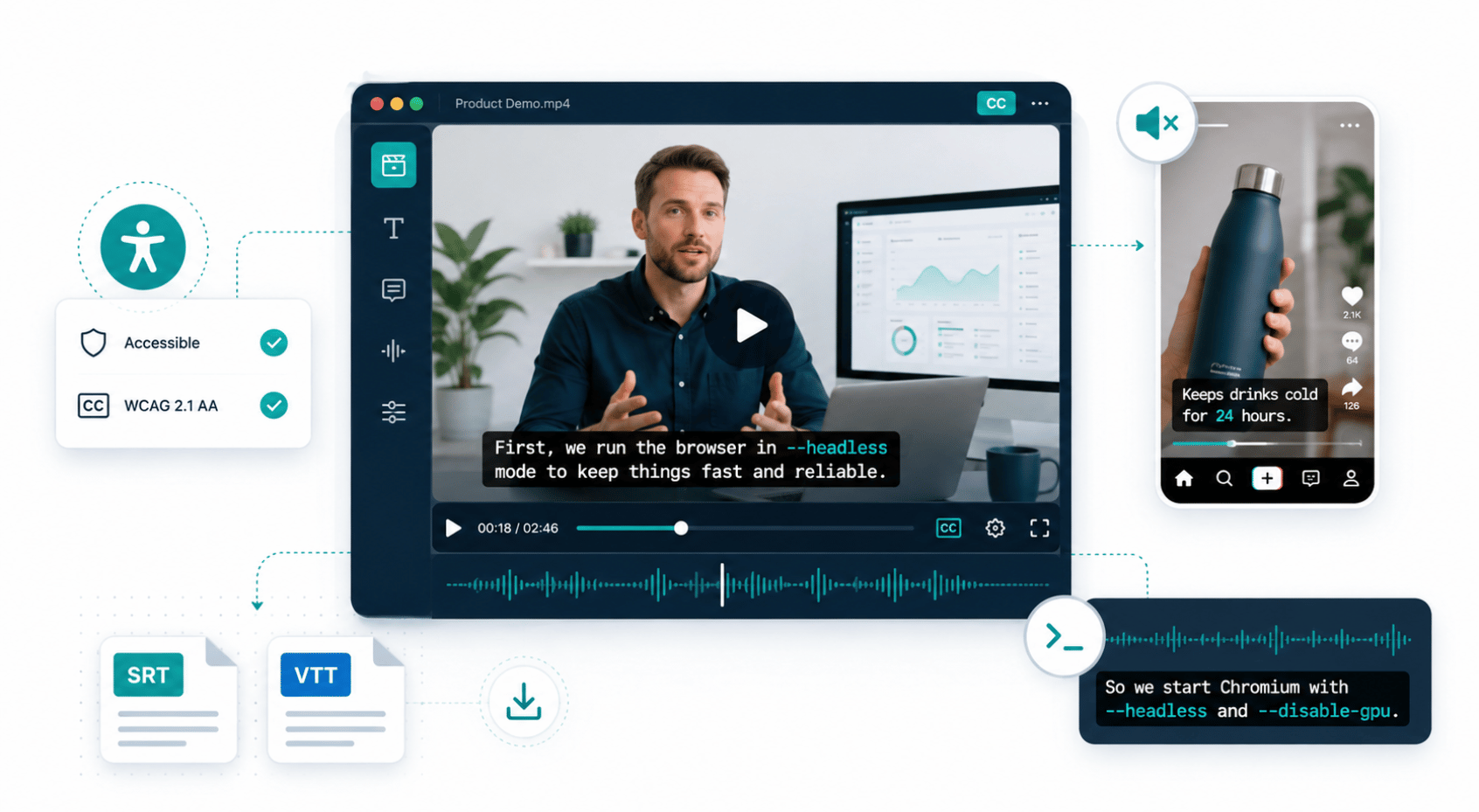
Two things pushed captions from optional to standard, and only one of them is engagement. The other is procurement.
An auto caption generator transcribes a video's speech into timed text, then either burns it into the frame or exports it as an SRT or VTT file a player can toggle. Most run a Whisper-class speech model and hand you an editor to correct and style the result.
Accessibility is the side with rules attached. WCAG lists captions for prerecorded audio as a Level A criterion, the baseline tier, which is why enterprise and public-sector procurement checks for it before a purchase order clears. Wistia's 2026 State of Video Report puts 90 percent of video teams taking steps toward accessibility.
The engagement case is real but worse-sourced than most posts admit. The "85 percent of video is watched on mute" line everyone quotes traces to a 2016 trade article where two publishers self-reported it, and no platform has ever confirmed the number, as Vidico's short-form video statistics roundup sets out. Advertising data holds up better. XR Extreme Reach found 61 percent of 25 to 34 year olds say captions make them more likely to watch an ad, the highest share of any age group.
There is a third reason nobody markets. On a product demo video, a spoken command is a guess until the viewer sees it spelled out, and captions are often the only place someone learns how --headless is written.
Three Caption Formats, Three Different Jobs
Before comparing tools it helps to know which output you need. Picking the wrong format costs more rework than picking the wrong vendor.
1. Burned-in captions for social feeds
Open captions are rendered into the pixels, so they survive being downloaded, reposted, and stripped of metadata. Reels, Shorts, and TikTok mostly ignore attached subtitle tracks, which makes burn-in the working default for anything vertical. The cost is permanence. A burned-in caption cannot be translated later, cannot be turned off, and travels straight out of frame when a landscape cut gets recropped to 9:16.
2. Subtitle files for players and search
SRT and VTT files stay selectable, translatable, and readable by search engines as text. YouTube, Vimeo, and most embedded players accept either. This is the right output for anything hosted on your own site, anything you plan to localise, and anything long enough that a viewer might want to skim it.
3. Compliance-grade captions
Where accuracy is a legal requirement rather than a preference, automatic speech recognition alone does not clear the bar. ADA, FCC, and WCAG conformance work usually needs human review on top of a machine draft, priced per minute rather than per seat. Training libraries, university content, and anything public-sector sit here.
The 7 Best Auto Caption Generators for Video
We put these 7 through the captioning work we already do for clients, which is product demos, interview cuts, and vertical ad variants. Three things told us most. How each one handled a product name it had never encountered, how long a single correction took once the transcript came back, and whether the captions survived a recrop into another aspect ratio.
Tools that styled captions beautifully but made fixing them slow did not make the list. What is left covers transcript-first correction, animated short-form styling, agent-built caption tracks, mobile capture, and human-verified compliance work. Pricing is what each vendor lists on its own pricing page, on annual billing where they offer it.
1. Descript
Descript is a text-based video and audio editor where the transcript is the timeline. Deleting a sentence from the written transcript deletes it from the video, which collapses cutting and captioning into a single pass. It runs on macOS and Windows with a browser version alongside, and captions leave burned into the frame or as a subtitle file. Long conversational audio is where that model pays off hardest, since a forty-minute interview produces hundreds of caption cues needing the same correction pass.
Key Strengths
Transcript-driven editing: Correcting a misheard word fixes the caption and the underlying transcript in one action, with timing preserved.
Filler word removal: Automatic detection and removal of "um" and "like" cleans the caption text and the audio at the same time.
Custom vocabulary: Product names, competitor names, and internal jargon can be taught to the model so they stop arriving as the nearest common English word.
Studio Sound: Audio cleanup runs before transcription, which measurably improves recognition on room-recorded footage.
Overdub corrections: A misspoken line can be replaced with synthesised audio rather than re-recorded.
Limitations
Media minutes replaced hours: The September 2025 billing overhaul swapped transcription hours for metered media minutes plus AI credit top-ups.
Per-seat billing: Every occupied seat bills separately, and unused AI credits expire twelve months after purchase.
Pricing
Free: $0
Hobbyist: $16/mo billed annually
Creator: $24/mo billed annually
Business: $50/mo billed annually
Enterprise: Custom
Best fit
Pick it when the caption fix and the edit are the same job, like a forty-minute interview needing both a trim and a corrected transcript. Skip it if captions are all you want, because you are buying a full editor to use one corner of it.
2. Submagic
Submagic is a web app that turns a finished clip into animated, word-by-word captions styled for vertical feeds. You upload the video, choose a preset, and the karaoke-style highlighting short-form creators use lands automatically against the transcript. It is a captioning and clipping layer rather than a full editor, so it sits after your cut instead of replacing it. Everything is metered per video exported rather than per minute, which shapes how teams work with it more than any single feature does.
Key Strengths
Template library: Preset caption styles match what already performs on Reels and Shorts, so styling is a choice rather than a design project.
Eye contact correction: Redirects a presenter's gaze toward the lens, useful when the script was read off a second monitor.
B-roll insertion: Storyblocks footage drops in against the transcript automatically on Pro and above.
Caption translation: Existing caption tracks translate into other languages without re-uploading the video.
Brand kit: Fonts and colours lock across a team so captions stay consistent between editors.
Limitations
Counted per export, not per minute: Re-exporting one clip in a different caption style spends another video from the allowance, which punishes iteration.
Right-to-left text breaks: Arabic, Hebrew, Urdu, and Persian do not lay out correctly at any tier.
Pricing
Free: $0
Starter: $12/mo billed annually
Pro: $23/mo billed annually
Business: $41/mo billed annually
Magic Clips add-on: $12/mo billed annually
Best fit
Pick it when you publish ten or more vertical clips a week and want caption styling to be a preset rather than a design decision. Skip it if your videos run long or arrive as raw footage, since it works on finished cuts rather than replacing your editor.
3. VEED
VEED is a browser-based video editor that started as a subtitling tool and grew outward into a wider AI video platform. Automatic subtitling still sits at the centre of it, generated against the timeline and correctable line by line before export. Nothing installs, which makes it the easiest tool here to hand to a colleague who needs one video captioned and nothing more. The subtitle editor works against the waveform rather than a plain text list, which is where the real work happens.
Key Strengths
Nothing to install: The full editor runs in a browser tab on any machine, including locked-down work laptops.
Subtitle translation: Captions translate into a wide language set and export as separate files per language.
Auto-subtitle allowance: Unlimited automatic subtitling on paid tiers rather than a per-minute meter.
Clean Audio: Background noise reduction runs before transcription, which lifts accuracy on phone-recorded footage.
Brand kits: Caption fonts, colours, and positions save as reusable presets across a workspace.
Limitations
AI credits reset annually, not monthly: On Pro the pool has to last the full year, and nothing rolls over.
Tiers keep getting renamed: Lite and Business became Creator, Pro, and Studio during 2026, and rates differ by region.
Pricing
Free: $0
Creator: $12/mo billed annually
Pro: $22/mo billed annually
Studio: $39/mo billed annually
Enterprise: Custom
Best fit
Pick it when captions and translation have to happen in the same place, on a locked-down laptop where nothing can be installed. Skip it if captioning is the only job, because the credit pool and the price are sized for a full AI video platform.
4. CoAnimator
CoAnimator is an agentic animation studio where an AI coding agent builds and edits video from a plain-language description rather than a timeline you click through. It runs as a desktop app on macOS, Windows, and Linux, with a live stage that hot-reloads as the agent works. Captions sit inside the project as timeline elements timed against the narration rather than flattened into a finished render. A separate free browser caption tool handles one-off clips with no install and no account.
Key Strengths
Create by describing: A demo, launch video, or tutorial builds scene by scene, and you redirect at any moment.
Edit by describing: Name the look, and effects, captions, and overlays land on your own recording.
Always-editable projects: Change one scene weeks later and re-render, with git-friendly files and nothing baked in.
Agent agnostic: Claude Code, Codex, Gemini, OpenClaw, or any agent that reads files and runs shell commands.
Local rendering and coa CLI: Unlimited offline exports keep unreleased work on your machine, and CI renders changelog videos.
Limitations
Results depend on the agent you connect: Output quality varies with which agent you point at it and how much direction you give.
Customisation beyond the studio: Anything outside what ships may need plugins or external tools to reach the final video.
Pricing
Free: $0
Best fit
Pick it when the same demo gets re-cut every release and you want captions to regenerate from the script instead of being retyped. Skip it if you want an upload box and nothing else, since the studio is a desktop install and the web tool covers one-off clips only.
5. Kapwing
Kapwing is a collaborative browser workspace where auto-subtitling sits inside a shared project library rather than a single-user editor. Everything runs in the cloud with permissions attached, so a caption style one editor sets is the one the next person opens instead of a file they have to be sent. Its edge over VEED is team structure more than caption quality. Subtitling is one tool inside a general editor here, which means it handles captions well without being built solely around them.
Key Strengths
Unlimited team members on Business: One subscription covers the whole team rather than charging per seat at the top tier.
Subtitle translation: Caption tracks translate into 100 or more languages, with AI dubbing across 40 or more.
Smart Cut: Silence removal runs against the transcript, trimming dead air and the empty caption cues that come with it.
Workspace folders: Projects organise by client or campaign, which keeps caption styles from drifting between editors.
Auto-resize: Reframing for a different aspect ratio repositions captions rather than cropping them out.
Limitations
Free tier is a demo: Ten lifetime AI credits cover roughly ten minutes of auto-subtitling in total, not per month.
Credits set the ceiling, not seats: Only Business can buy more once the monthly AI minutes run out.
Pricing
Free: $0
Pro: $16/mo per member billed annually
Business: $50/mo per member billed annually
Enterprise: Custom
Best fit
Pick it when four people caption for six brands and the styles keep drifting apart between editors. Skip it if you work alone, because the shared workspace is most of what the price buys and Pro caps AI minutes at 1,000 a month.
6. Captions
Captions is a mobile-first iOS and Android app built around shooting and captioning on the same device. Recording, teleprompter, styling, and export all happen on the phone, so footage never has to reach a desktop before it publishes. Caption coverage runs to 100 or more languages on the entry tier, which is unusually wide for a phone app at that price. It is the only tool on this list where the camera and the caption editor are the same piece of software.
Key Strengths
Shoot-to-publish on a phone: Built-in teleprompter and recorder mean the footage never leaves the device before it is captioned.
Watermark-free at the entry tier: Pro removes the watermark at $9.99 a month, which is unusual at that price.
AI Dubbing: Audio dubs into other languages with lip movement adjusted to match.
Caption customisation: Fonts, positions, and animation styles adjust without leaving the app.
AI Twin: A digital double can deliver a script when reshooting is not practical.
Limitations
Generative features sit above Pro: The AI editing library, generated video, and digital twins all need Max or higher.
Credit consumption is opaque: Pro's allowance is unpublished, and AI Twin and AI Actor outputs burn five to ten credits each.
Pricing
Free: $0
Pro: $9.99/mo
Max: $24.99/mo
Scale: From $69.99/mo
Enterprise: Custom
Best fit
Pick it when the clip is shot, captioned, and posted from a phone between meetings. Skip it if footage arrives as files from a camera or a screen recorder, because the app is built to be the camera as well as the editor.
7. Rev
Rev sells captions as a service rather than software, pairing its own speech recognition with a marketplace of trained human transcriptionists. You upload a file, choose the automated or the human tier, and finished caption files come back rather than an editor to work in. That makes it the one option here where captioning leaves your team entirely instead of becoming someone's afternoon. The transcription operation behind it predates the current wave of AI caption tools by roughly a decade.
Key Strengths
Human-verified accuracy: Trained transcriptionists target 99 percent accuracy on audio that defeats automatic speech recognition.
Compliance-ready output: ADA, FCC, and WCAG-conformant captions with the review trail procurement asks for.
Per-minute pricing: No seats to buy, which suits teams captioning irregularly or in large one-off batches.
All formats included: SRT, VTT, and the rest ship with any order at no extra charge.
English captions bundled with translation: A global subtitle order includes English captions free when you do not supply your own file.
Limitations
Translation is the expensive line: Global subtitles cost several times English captioning, depending on the language pair.
Four overlapping ways to pay: Pay-as-you-go AI, pay-as-you-go human, subscription tiers, and a legacy consumer plan all coexist.
Pricing
AI captions: $0.25 per audio minute
Human captions: $1.99 per video minute
Spanish captions: $3.25 per video minute
Translated subtitles: $6.49 to $15.99 per video minute
Best fit
Pick it when a caption error is a compliance finding rather than a typo, on training libraries or public-sector video. Skip it for routine social output, since twenty minutes of human captioning costs about $40 and outruns a full year of most plans here.
Auto Caption Generator Comparison
Price is the column buyers look at first and the one that decides least here. Caption output and where processing runs are what rule tools in or out.
Tool | Best for | Caption output | Where processing runs | Price from |
|---|---|---|---|---|
Editing the cut and the captions together | Burn-in, SRT, VTT | Cloud | $16/mo billed annually | |
Animated vertical captions at volume | Burn-in, SRT | Cloud | $12/mo billed annually | |
Captions plus translation in a browser | Burn-in, SRT, VTT | Cloud | $12/mo billed annually | |
Captions that regenerate with the project | Burn-in, SRT, VTT | Local, on your machine | $99 one time | |
Multi-client teams sharing caption styles | Burn-in, SRT, VTT | Cloud | $16/mo billed annually | |
Filming and captioning on a phone | Burn-in, SRT | Cloud | $9.99/mo | |
Compliance-grade accuracy | SRT, VTT, and more | Cloud plus human review | $0.25 per audio minute |
How to Choose an Auto Caption Generator
Signing up for three free tiers and picking whichever felt least annoying is not a test. Four factors decide this, and none show up in a feature grid.
Accuracy on your vocabulary, not clean speech: Every engine handles a clear narrator. Test what breaks, which is your product name, your competitors, and any acronym read out letter by letter. Without a custom dictionary, you correct the same word in every video you publish.
Time one correction, not one generation: Generation speed is the number vendors publish and the least useful one to compare on. Time a misheard product name fixed, an overlong line split, and a late cue nudged two tenths of a second. That figure, times your monthly volume, is the real cost.
Match the output to the destination: Burn in for feeds that strip subtitle tracks, export files for your own site or anything headed for translation. Get it wrong and a landscape master's captions travel out of frame the moment someone recrops it, so run the aspect ratio calculator before you bake anything in.
Price the tier you need in six months: Per-export counts punish iteration, per-minute credits punish long-form, and per-seat pricing punishes growth. Work out which of the three describes your output, then price that plan rather than the one that got the trial approved.
Run all four against a single real video, not the sample footage in the trial. An hour spent captioning one awkward clip in two shortlisted tools tells you more than a fortnight of comparing plan pages.
Captions Are Becoming Part of the Project, Not the Export
The tools worth watching have stopped considering captions as a final step. When caption text is part of the project rather than the render, a script change updates the captions’ timing and every aspect ratio cut from the master. Conversely, a tool that embeds them into a finished file turns the same change into a redo quickly, compounding the issue for social video ad producers working across multiple aspect ratios.
Plan for the correction layer too. Speech recognition has plateaued somewhere useful, strong on ordinary speech and predictably weak on names, acronyms, and cross-talk, and that is a context problem no model release fixes. Check a tool's custom dictionary before you check its template library.
If the video underneath is the problem rather than the captions on it, no tool on this list fixes that. At AllCapStudio we make the whole thing, script through final grade, and you get the master, the vertical crops, the captions, and every source file.
Written by the AllCapStudio team. We publish what we would tell you on a call, which occasionally costs us the project.
Read next
All articles- JournalBrand Video Examples and What Makes a Brand Film WorkBrand video examples from Dollar Shave Club, Volvo, Apple and Patagonia, broken down by hook, format and purpose, plus what makes a…
- JournalBest Motion Graphics Software for Product Videos and Brand Animation (2026)Revisions, repeat versions and tight deadlines are the hardest part of creating motion graphics for product videos and brand…
- JournalUGC Video Examples: 5 Formats and How Brands Use ThemUGC video examples sorted into 5 types by hook, build and purpose, with real brand cases and a way to test them before you scale.