Journal17 min read
Instagram Reel Size Guide (2026): Dimensions, Safe Zones and Export Settings
Instagram Reel size is 1080 × 1920 in 9:16. See how feeds and grids crop it, where text stays visible and which export settings to use.
- Published
- Updated
- Written by
- AllCapStudio

Making an Instagram Reel takes real effort, and if you are a beginner it takes even longer. You plan, shoot and edit, and the Reel can still go live with your captions hidden behind buttons, a cover that crops badly and text that looks soft. Instagram Reel size seems like a settled question, so you may not know where to look for the cause.
To find the cause, we compared Instagram's Help Center, Meta's developer documentation and the spec guides most creators use. Size guides report that your Reel file appears in three different shapes inside the app, and Instagram compresses it again after you upload. The published numbers also disagree, because Instagram documents some figures and leaves others for outsiders to measure.
We deliver vertical cuts with every project at our studio, so we need these figures right. This guide takes one question at a time, starts with the size itself and explains each technical term when it first appears, so you can read straight through.
Instagram Reel Size: The Specs at a Glance
Export your Reels at 1080 × 1920 pixels in 9:16, at 30 fps, as H.264 video with AAC audio. The ratio 9:16 means the frame is nine units wide for every sixteen tall, the full-screen vertical shape of a phone. The table below explains each term and shows which figures Instagram documents and which come from spec guides.
Instagram's Help Center is the source for the minimums in the table. The 1080 × 1920 figure comes from spec guides such as Sprout Social's, and most other guides repeat it.
Spec | Value | What it means | Source type |
|---|---|---|---|
Recommended frame | 1080 × 1920 px, 9:16 | Width and height in pixels (px, the dots that make up the picture), in a shape nine units wide for every sixteen tall | Sprout Social spec guide |
Accepted aspect ratios | 1.91:1 to 9:16 | Aspect ratio is the width-to-height shape of the frame, where 1.91:1 is wide landscape and 9:16 is tall vertical | Instagram Help Center |
Minimum resolution | 720 px | Resolution is the pixel count of the frame, and this is the smallest size Instagram lists | Instagram Help Center |
Frame rate | 30 fps recommended | Frames per second (fps) is how many still images play each second | Help Center and Meta developer docs |
Codec and audio | H.264 or HEVC video, AAC audio | A codec is the method used to compress video. H.264 is the most widely supported and HEVC is a newer one. AAC is the standard compressed audio format | Meta developer docs |
Length | Up to 20 minutes | How long a Reel can run, covered in the length section below | Social Insider, quoting the Help Center |
The sources differ on frame rate. The Help Center names 30 fps as the minimum, while Meta's publishing documentation accepts 23 to 60. Exporting at a constant 30 fps satisfies both.
Why Instagram Reels Use a 9:16 Aspect Ratio
Instagram accepts other shapes, but only 9:16 matches the full-screen frame, and the arithmetic shows what the alternatives cost you. If you upload a 1:1 file, which is a square, at 1080 × 1080, it sits in a 1080 × 1920 frame with 840 px of empty space above and below. A 16:9 recording, the usual landscape video shape, leaves far more, so shoot or reframe in 9:16 from the start.
Reel Size vs Stories, TikTok and YouTube Shorts
Stories, Instagram's 24-hour vertical posts, use the same 1080 × 1920 frame. Sprout's guide says one 1080 × 1920 MP4 under 60 seconds uploads natively to Reels, Shorts and TikTok, among other platforms. That file is your master, the highest-quality final export that you make every other version from. Each app overlays its own buttons in different places, so your master can serve all of them only after you check the safe zone for each platform.
Instagram Reel Dimensions Across Different Views
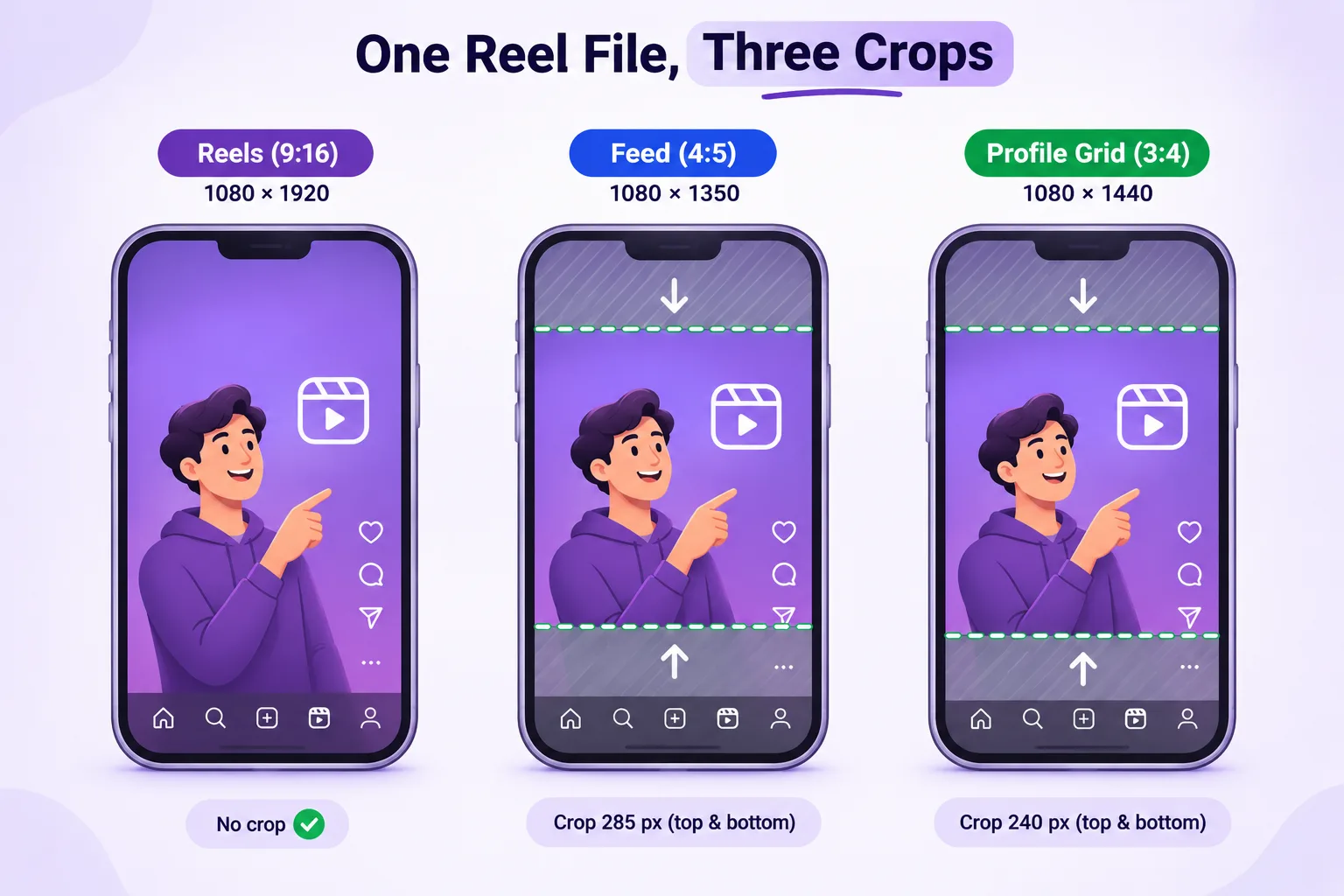
Your Instagram Reel dimensions stay 1080 × 1920, but the file is shown in three crops, 9:16 in the Reels tab, 4:5 in the feed and 3:4 on your profile grid. Anything important belongs in the center of the frame.
In this guide, the Reels tab is the full-screen Reels viewer and the feed is the main scrolling timeline on your home screen. The profile grid is the grid of thumbnails on your profile page. A crop means showing only part of the frame, and a ratio such as 4:5 means four units wide for every five tall, a shape closer to square.
Instagram changed its profile grid to rectangles in January 2025, alongside three-minute Reels. Hopper HQ reports that the grid now crops every thumbnail to 3:4 at 1080 × 1440, and Planoly reports that the Reels feed view shifts to 1080 × 1350, which is 4:5. We found no Instagram documentation of either crop, so treat the pixel values as reported by size guides plus arithmetic on a 1080 × 1920 frame.
View | Ratio | Visible area | Cut from top and bottom |
|---|---|---|---|
Reels tab | 9:16 | 1080 × 1920 | None |
Feed preview | 4:5 | 1080 × 1350 | 285 px each |
Profile grid | 3:4 | 1080 × 1440 | 240 px each |
To see how much each crop removes, subtract the visible height from 1920 and split the result between the top and the bottom. That gives (1920 − 1350) ÷ 2 = 285 and (1920 − 1440) ÷ 2 = 240. Planoly's guide also gives the grid tile as 1013 × 1350, the same 3:4 shape at a different scale. Confirm the crop on your own profile before you lock a cover.
How to Convert Landscape and Square Videos to 9:16
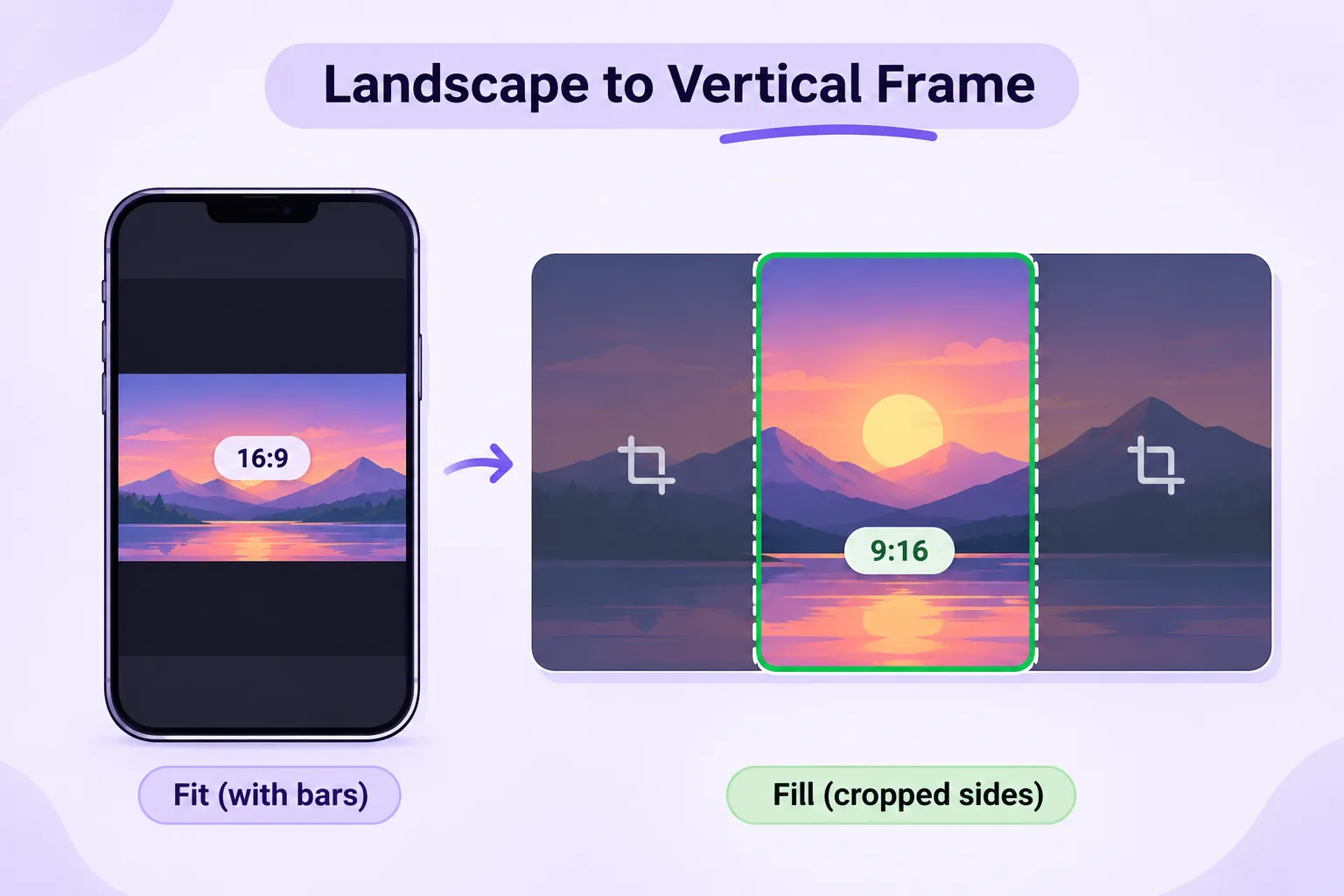
If you shoot or edit in landscape, you need to reframe for vertical, because both automatic routes cost a lot. Fitting shrinks the whole picture to sit inside the frame and leaves empty black bars, while filling enlarges the picture to cover the frame and crops whatever overflows. We worked through the numbers for a 1920 × 1080 frame.
Fit a 1920 × 1080 frame into 9:16: The picture scales to 1080 px wide and about 608 px tall, which leaves roughly 1,312 px of the 1,920 px height as bars.
Fill 9:16 from a 1920 × 1080 frame: The picture scales to about 3,413 px wide and the crop keeps 1,080 px of it, or about 32% of the width.
Our aspect ratio calculator returns matching dimensions for a ratio and writes the ffmpeg command for either route, ffmpeg being a free command-line tool that converts video files. If you record your screen, the fill route often cuts off the menu or data table you wanted to show, so recomposing the shot for vertical usually works better than cropping it.
Editors automate the crop in different ways. In Adobe Premiere Pro, a professional desktop editor, Auto Reframe changes the aspect ratio of a sequence while identifying the subject or action in the clip. You apply it from Sequence > Auto Reframe Sequence. CapCut, a mobile and desktop editor, tells you in its own guide to set the project to 9:16 before you edit. Your captions and cover art are then placed in the final frame from the start.
CoAnimator, an agentic animation studio where an AI agent builds the video from your description, says in its own guidance that landscape and vertical versions need a separate layout pass, because resizing the canvas alone is not enough. Whichever tool you use, review every reframed shot by eye before you export, since automatic tracking cannot judge which part of your screen recording matters.
Instagram Reels Safe Zone and Text Placement
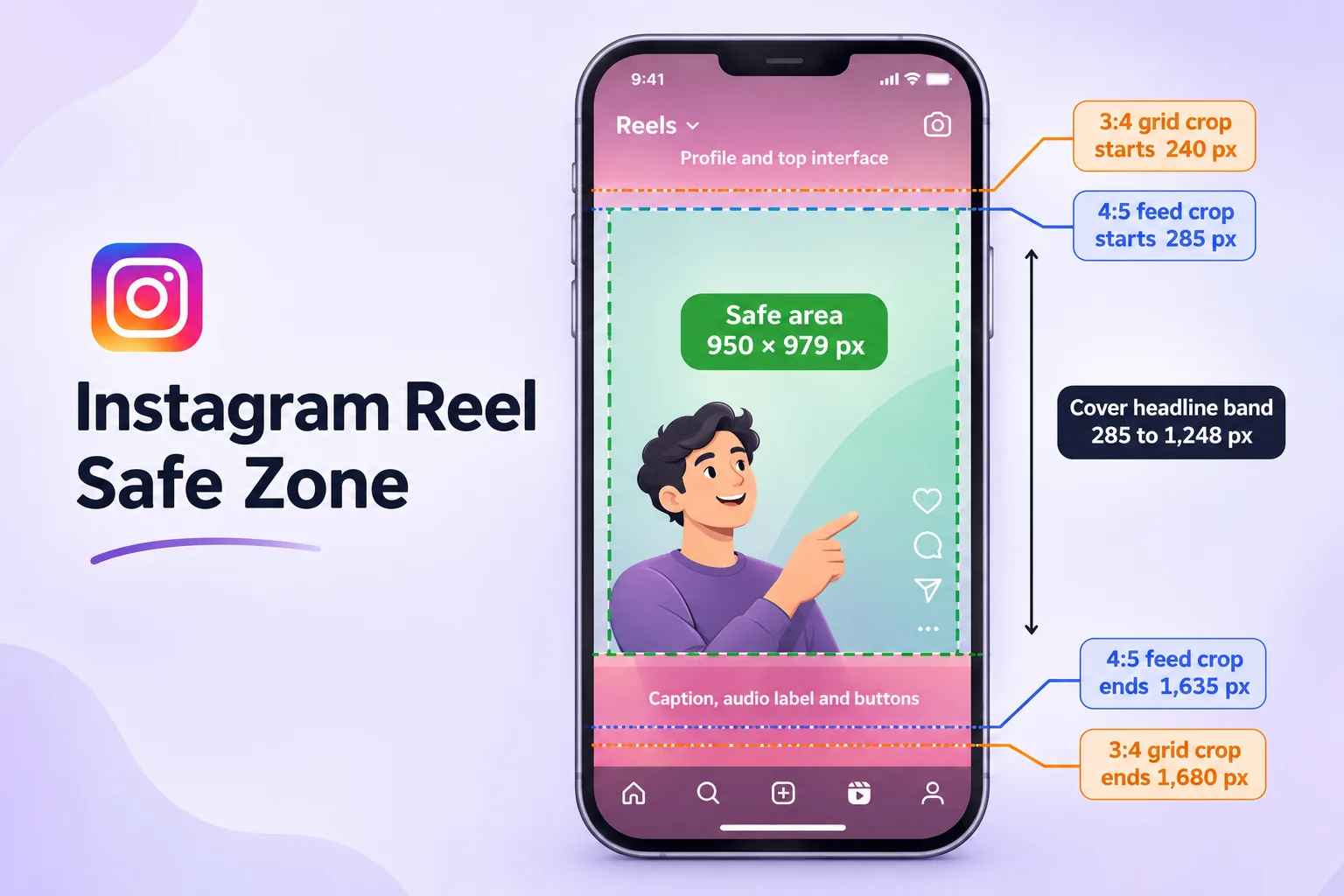
A safe zone is the part of the frame that Instagram's interface will not cover. On your 1080 × 1920 Reel, keep text and faces inside four guides set at 269 px and 1,248 px from the top and at 65 px from each side. Guides are the marker lines most editors let you place on the canvas.
The profile name, caption and buttons sit on top of your video, so any text placed under them is hidden.
Instagram Reels Safe Zone Specifications
We found no safe zone figures for organic Reels, meaning Reels you post normally and do not pay to promote, from Instagram or Meta. Meta's Reels ad specs do give figures for ads, asking advertisers to leave roughly 14% at the top, 35% at the bottom and 6% on each side free of text and logos. Hootsuite and Sprout Social's ad specs print a smaller 20% bottom margin, so we use the stricter 35%. For organic posts, we suggest you apply the ad figures as a minimum.
Instagram Reels Safe Zone Margins in Pixels
Margin | Meta Reels ad spec | Guide position |
|---|---|---|
Top | 14%, about 269 px | Horizontal guide at 269 px |
Bottom | 35%, about 672 px | Horizontal guide at 1,248 px (1920 − 672) |
Each side | 6%, about 65 px | Vertical guides at 65 px and 1,015 px (1080 − 65) |
That leaves a usable area of about 950 × 979 px. The like, comment and share buttons sit along the right edge, so favor the left side of that area for small text. A safe zone template is these four guides saved on a 1080 × 1920 canvas.
Where to Place Captions, Subtitles and Logos
Place your subtitles so the last line ends above the 1,248 px guide, since the caption and buttons stack at the bottom of a Reel. Keep your logo below the 269 px line. Put prices, deadlines and calls to action, meaning the buttons or lines that tell viewers what to do next, in the central band.
How to Check Your Reel Layout Before Publishing
Layouts differ by device and app version, so keep key content a little inside your guides. For organic Reels, publish a test Reel from a private or secondary account and screenshot the frame on your phone before the real upload. If nothing is clipped in that screenshot, your layout is ready to publish.
Instagram Reel Cover Size and Thumbnail Dimensions
Design your cover at 1080 × 1920 and keep the headline between 285 px and 1,248 px from the top. The cover is the still image that represents your Reel on your profile, and Instagram Reel thumbnail size follows the same rule.
Sprout's spec guide lists a recommended Reels cover of 420 × 654 pixels, a 1:1.55 ratio, while Hopper HQ and most other guides tell you to upload 1080 × 1920 instead. The two agree on shape, because a cover is a crop of something taller than it is wide. A 1080 × 1920 file stays sharp at every size.
The headline band comes from the crops above. The 4:5 feed crop starts 285 px from the top, and Meta's bottom margin begins at 1,248 px. The band between them is about 963 px tall and stays visible in the Reels tab, the feed preview and the profile grid. This band is our derived estimate and not an Instagram specification, so confirm it on your own profile grid after your first post.
Instagram Reels Resolution and Export Settings
The one setting Instagram leaves open is bitrate, so choose it on purpose and keep the frame rate constant, since Instagram publishes no bitrate target for in-app uploads.
Bitrate is the amount of video data used per second, measured in megabits per second (Mbps), and it largely decides how sharp fine text stays after upload. A constant frame rate means the video keeps the same number of frames every second instead of varying. A container is the file wrapper around the video and audio, and MP4 is the most widely supported one.
Instagram's Official Video Export Specifications
Meta's publishing documentation lists HEVC or H.264 video, 23 to 60 fps, a VBR ceiling of 25 Mbps and AAC audio at 128 kbps. VBR, short for variable bitrate, lets the encoder spend more data on busy scenes and less on still ones, and kbps means kilobits per second. That page covers publishing through the API, the connection that scheduling tools use to post for you, so treat it as the clearest published ceiling and not as an in-app guarantee.
Recommended Instagram Reel Export Settings
Setting | Starting point | Basis |
|---|---|---|
Container | MP4 | Widely supported |
Video codec | H.264 | Accepted by Meta and the most widely supported option |
Frame | 1080 × 1920, 9:16 | Spec guides |
Frame rate | 30 fps, constant | Help Center minimum |
Bitrate | 8 to 10 Mbps VBR | Our suggested starting point, not an Instagram figure |
Audio | AAC, 48 kHz, 128 kbps | Meta publishing spec |
The bitrate row is a starting point for you to test. Export a short clip, upload it privately and check fine text on your phone before you commit to a number.
1080p vs 2K vs 4K for Instagram Reels
In May 2025, the product lead for Edits, Instagram's own video editing app, said that Edits exports at HD (1080 × 1920), 2K (1440 × 2560) and 4K (2160 × 3840). He recommended filming and exporting at 2K and added that 4K gives viewers no visible difference. He also advised using the Share to Instagram button after exporting from Edits, because it can minimize re-encodes, the extra round of compression Instagram applies to uploads. Most size guides still say 1080 × 1920.
If your editor can export 1440 × 2560 without forcing a lower bitrate, that matches both the Edits advice and the size Meta's ad specs list for Reels ads, covered below. If keeping the file small means cutting bitrate, 1080 × 1920 at a healthy bitrate is the better trade for you.
Check the export tier of your editor as well, because free and paid plans differ at the point where you export. Two editors show how much the limits vary.
CoAnimator limits free exports to 720p with a watermark, which meets Instagram's 720 pixel minimum but falls below 1080 × 1920. A licence adds 4K and clean exports.
CapCut says in its export help page that the online editor offers 2K and 4K only when your project media is at least that size. It adds that free accounts may face watermarks or bitrate limits on 4K exports.
Whichever editor you use, open its export panel and confirm the size, frame rate and watermark settings before you render a Reel.
Why Instagram Reels Lose Quality After Upload
Instagram re-encodes your uploads, which is why the Edits lead cared about minimizing it. These habits lower the quality of the final file.
Exporting at a low bitrate means Instagram compresses your file a second time.
Re-uploading a downloaded or screen-recorded copy adds another generation of loss, because each copy is slightly worse than the last.
Fine detail such as small subtitles, dashboards and thin lines loses sharpness first under compression, so export it from your clean master at the higher end of your bitrate range.
Export once from your clean master at a deliberate bitrate, and upload that file directly.
Instagram Reels Ad Dimensions and Specifications
Reels ads, which are paid placements, use a different spec from organic Reels. Sprout Social's ad specs list Reels video ads at 9:16 with a minimum of 1440 × 2560 and a length from 0 seconds to 15 minutes.
Keep your organic 1080 × 1920 master and export a second file at 1440 × 2560 for paid use, instead of enlarging the organic one. The safe zone margins are percentages, so on a 1440 × 2560 file they scale to about 358 px at the top, 896 px at the bottom and 86 px on each side.
Instagram Reel Length and File Size Limits
Your Reel can run up to 20 minutes, but Reels longer than 3 minutes are not recommended to non-followers, according to Social Insider's reading of the Help Center. Plan for three minutes or less when reach matters.
Instagram announced three-minute Reels in January 2025, so any guide that still lists a shorter limit is out of date. Published file size limits vary between sources, so check the app before you upload a long Reel. For planning, video at 10 Mbps adds 1.25 MB per second, which is about 75 MB for one minute and about 225 MB for three.
How to Plan Videos for Vertical Formats
Plan your vertical frame before shoot day, because a crop can only use pixels your camera recorded.
Record in Higher Resolution for Vertical Cropping
Your source resolution decides how much room a vertical crop has. A 3840 × 2160 frame holds a 1215 × 2160 vertical window, which scales down to 1080 × 1920 with no enlargement. A 1920 × 1080 frame holds only a 607 × 1080 window, which would need enlarging by about 78% to reach 1,920 px tall. When your project needs both a 16:9 master and a 9:16 cut, frame the shoot with the vertical crop in mind.
Include Video Formats in Your Production Brief
The brief is the written project plan agreed before production starts, whether you write it for a client, a team or yourself. List every platform and aspect ratio in it before the first draft, as we do when we name every platform and ratio at the brief. Our process hands over vertical crops alongside the master file, the cutdowns (shorter versions of the same video) and the captions. A format missing from the brief is therefore missing on delivery day, and fixing it means a second round of production.
Instagram Reel Size and Export Checklist
Work through these stages in order, because each one depends on the one before it.
Before you edit
Set the canvas to 1080 × 1920, 9:16. Every crop and guide position in this guide is measured from this frame.
Confirm each clip's resolution before you plan a crop. A landscape clip has to be enlarged to fill a vertical frame, and the smaller the clip, the softer the result.
While you edit
Draw guides at 269 px and 1,248 px from the top and 65 px from each side. Keep text, faces and logos inside them.
End your last subtitle line above 1,248 px. The caption and buttons stack at the bottom, so pause on your busiest frame and check the lower third.
Place the cover headline between 285 px and 1,248 px. That band stays visible in the Reels tab, the feed preview and the profile grid.
Before you export
Export as MP4 with H.264 video, AAC audio and a constant 30 fps. These sit inside the ranges in the Help Center and Meta's publishing documentation.
Start at 8 to 10 Mbps VBR. Instagram publishes no target, so export a 10 second clip and check small text on a phone.
Upload the original export, not a downloaded or screen-recorded copy. Each copy adds another round of compression.
Add a 1440 × 2560 file only for ads. Reels ads follow their own spec, and enlarging an organic file adds no detail.
Before you publish
Publish a private test Reel and screenshot it on a phone. Check for covered text at the bottom and right edges, the feed and grid crops and the sharpness of small text.
If a check fails, fix that stage first, because an early mistake carries into every later step.
Conclusion
Three kinds of numbers appear in this guide, and each deserves a different level of trust. Treat what Instagram and Meta document, such as the 720 pixel and 30 fps minimums and the 25 Mbps publishing ceiling, as limits. Treat what size guides report, such as 1080 × 1920 and the 4:5 and 3:4 crops, as defaults to confirm on your own profile. Treat what we derived as starting points to test before you rely on them. These are the guides at 269 px and 1,248 px, the 285 to 1,248 px cover band and the 8 to 10 Mbps bitrate.
Keep the checklist above as your routine and add one habit to it. Write down the figures you relied on and the date you checked them, because these numbers move. The profile grid and the maximum Reel length both changed in January 2025. The Help Center now lists far more than the three minutes announced then, so a Reel that passed your test last year deserves a fresh test after any major app update.
Written by the AllCapStudio team. We publish what we would tell you on a call, which occasionally costs us the project.
Read next
All articles- Journal10 Best Remotion Alternatives for Non-Developers (2026)Compare 10 Remotion alternatives for non-developers, from free open-source tools to AI agent studios and template APIs, with…
- Journal7 Best Cardboard AI Alternatives for Video EditingWe tested 7 Cardboard AI alternatives for editing, clipping, and building video, comparing pricing and who each tool best fits.
- Journal9 Best Text-to-Video AI Generators Compared (2026)Compare 9 text-to-video AI generators for 2026, including pricing, native audio support, and which tool fits your video needs.