Journal23 min read
Best AI Video Editor for Your Footage: 7 Tools Compared
Find the best AI video editor for your footage and budget. We compare 7 tools on strengths, limits and annual pricing, plus a test to run yourself.
- Published
- Updated
- Written by
- AllCapStudio

Editing footage costs time in four places, which are cutting filler and pauses, captioning, reframing for vertical and handing the cut to a finishing editor. AI video editors promise to take over all four, and each one automates only some of them.
That is why the best AI video editor depends on your footage and your budget. Tools differ in how they edit, through a transcript, by pulling highlights or by automating prep around your cut, and in how they bill, by seat, by AI credit or by the minute of footage you upload. A mismatch means redoing the work in a second tool.
We picked seven AI video editing tools by budget, strengths and limits, so you do not have to sort the field yourself. Each entry shows what the tool does, what it costs on annual billing, where it falls short and which budget it fits. Afterward we price three realistic months and give you a same-footage test to run on your own clip. Every tool shortens the path to a first cut, and you still own the correction pass.
What Is an AI Video Editor and How Does It Work?
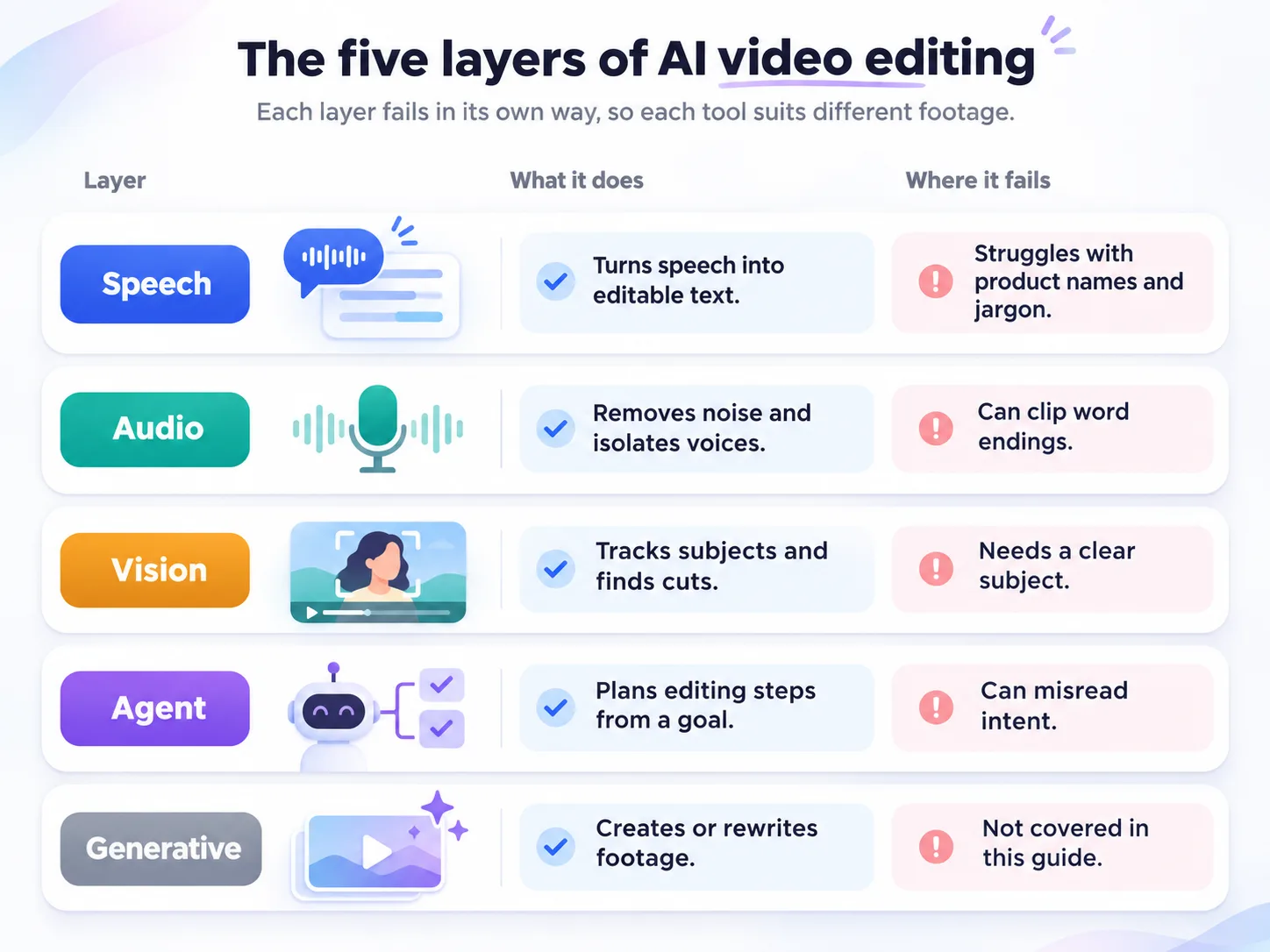
An AI video editor is software that uses machine-learning models to cut, clean up and assemble footage you already have. We sort those models into five layers, and knowing them tells you what a tool can and cannot fix, because each layer fails in its own way.
Speech: Turns audio into time-stamped text, so deleting a word can delete the matching frames and the same transcript feeds captions. It struggles with product names, jargon and unsupported languages.
Audio: Removes noise and isolates voices. Over-processing can clip word endings.
Vision: Tracks objects, reframes, searches footage and detects scene cuts. It needs a clear subject to follow.
Agent: Plans several editing steps from a plain-language goal and runs them inside the editor, which is the core of agentic video editing. It can misread intent, and the cost per run can vary.
Generative: Creates or rewrites footage from prompts, the territory of text-to-video generators, which we left out because they replace footage instead of editing it.
Each tool below works mainly in one or two of these layers, which explains both its strengths and its limits.
The 7 Best AI Video Editing Tools Compared
Roundups that rank AI video editing software without naming a footage type or a budget cannot tell you what to buy, so every entry below names both. We kept seven tools that pair one decisive strength with a clear annual price, specific limits and a route to a finishing editor. We left out tools that mainly generate footage. The order is not a ranking, so check each verdict against your own numbers from the test steps later in this guide.
1. CoAnimator
CoAnimator is an agentic animation studio. Instead of a prompt box inside a web app, it connects to the AI coding agent you already use and turns that agent into your co-animator. It is built for product demos, launch videos, tutorials and explainers, and its templates give each video type a starting style. A live stage hot-reloads as the agent works, so you watch each change land and redirect it on the spot. Projects live in your own directory as ordinary files. The studio runs on Windows, macOS and Linux, with a free tier and a one-time lifetime license. It builds videos from a brief and does not clean up interviews.
What it does well
Runs on your own agent: Claude Code, Codex, Gemini, OpenClaw or any agent that reads files and runs shell commands becomes the animator, with no new subscription to adopt.
Builds from a brief: The agent researches the product, drafts the script and builds the video scene by scene while a live stage previews each change.
Edits real footage by description: Naming the look applies effects, captions and overlays to your own recording, so a demo cut can be restyled without rebuilding the timeline.
Videos stay editable files: Git-friendly project files with nothing baked in turn a product change weeks later into an edit and a re-render.
Plugins across the workflow: Voice, music, screen capture, publishing to YouTube and social, and research plug into the same project, so narration and distribution do not need separate tools.
Where it falls short
Agent-dependent output: Quality varies with the connected agent, the prompt and how much direction is given, so a vague brief produces a rough first draft that needs several rounds of redirection.
No built-in analytics: Tracking who watched a demo has to be built separately, and workflows beyond the built-in plugins may require external tools, which adds setup work.
Pricing
Free: Free to use, with a one-time lifetime license available
Our take
We would choose it for demos and tutorials that must change with every release. It costs nothing to start, and it will not clean up an interview.
2. Descript
Descript is a text-based video and audio editor that treats a recording as a document. Every file is transcribed on import, and deleting or rearranging text deletes or rearranges the matching footage. Beyond editing, it records screen and remote sessions, publishes shareable pages, supports live collaboration and allows unlimited projects on every plan. Its AI layer combines one-click cleanup tools with Underlord, an agentic co-editor that takes written prompts and carries out edits on your behalf. Descript runs as a web app and as a desktop app for macOS Monterey 12 or Windows 10 and newer, and Underlord is still in beta.
What it does well
Transcript-first editing: Cutting a sentence from the text cuts the matching footage, so spoken cleanup happens in a document instead of on a timeline.
Remove Retakes: Record a line several times and one click keeps the best take, which removes the manual hunt through repeated attempts.
Meaning-aware cleanup: Edit for Clarity cuts filler and non-essential chatter, while Remove Filler Words and Shorten Word Gaps cover pauses and ums.
Underlord agent: Written prompts run multi-step edits, apply the AI tools, and can search the web to fact-check a script, including from outside an open project.
Handoff to finishing editors: Creator and Business plans export timelines to Premiere and Final Cut Pro, so Descript handles the rough cut and a finishing editor takes over.
Where it falls short
Variable and beta AI: Underlord is in beta, the same prompt can cost different amounts on different runs, and its edits can contain mistakes. Manual tools give a steadier credit bill.
Two meters and a gated glossary: Media hours and AI credits are separate allowances, and the custom transcription glossary that helps with product names is included on Business only.
Pricing
Annual billing, per person.
Free: $0 with 60 media minutes a month
Hobbyist: $16/mo with 10 media hours
Creator: $24/mo with 30 media hours
Business: $50/mo with 40 media hours
Enterprise: Custom
Our take
We recommend Descript for anything spoken. Hobbyist at $16 a month gives a solo creator 10 media hours, and Creator at $24 adds 4K export and timeline handoff. Skip it for footage with little speech.
3. CapCut
CapCut is a video editor with desktop, online, mobile and tablet apps, a template library, effects and auto captions. Its AI work splits into three tools. Auto Cut analyzes your media and builds a cut sequence on the timeline, EditPilot is an assistant inside the desktop editor that carries out supported edits you describe in everyday language, and a Codex plugin turns uploaded clips plus a description into an editable rough-cut plan. A Pro subscription adds text templates, video effects, filters and 100GB of cloud storage, and the online editor can be tried without a credit card.
What it does well
EditPilot: You describe a change in everyday language and review it on the multitrack timeline, for talking-head cleanup, captions, voice polish and timeline refinement.
Auto Cut: It analyzes your media and creates a cut sequence on the timeline, and works best with clear audio and well-articulated speech.
Codex plugin: Uploaded clips plus a description of the edit produce an editable rough-cut plan, and the workflow can match footage to templates from the template library.
One editor across devices: Desktop, online, mobile and tablet apps share the same product, and Pro adds 100GB of cloud storage for moving projects between them.
Generative models in the same app: Video Studio includes models such as Dreamina Seedance and Sora 2, so a missing shot can be generated without leaving the editor.
Where it falls short
EditPilot is desktop only: It works only in the PC desktop editor, and it is not a one-click video maker, so every change needs review before it ships.
Hard-to-pin-down pricing: Pro prices vary by region, and it is unclear which AI tools need Pro, so confirm inside the app before relying on one.
Pricing
Free: $0
Pro: Yearly plan, priced by region
Our take
For fast vertical posts on a small budget, we would use CapCut, because the editor starts free. Check Pro pricing inside the app before you commit, since it varies by region.
4. Adobe Premiere
Adobe Premiere is Adobe's professional timeline video editor, sold by subscription for desktop and mobile. Its AI Assistant, in public beta, is a panel opened from Window > Assistant where you type a goal and the assistant breaks it into steps, picks Premiere tools and carries out the work inside your actual project. The beta focuses on project organization and assembly, such as bins, labels, transcripts, slate detection and rough assemblies, and the output is a normal editable sequence. It is built into Premiere as a panel and is not a plugin or add-on. Premiere plans also include Frame.io for Creative Cloud, the Adobe Express Premium plan and 100GB of cloud storage.
What it does well
Prep and assembly done for you: The Assistant organizes bins, renames clips, applies color labels, generates transcripts, detects slates, adds markers and builds a rough assembly.
Works inside the real project: The result is a normal, editable Premiere sequence, so nothing about an existing Adobe pipeline has to change and every clip can still be re-cut by hand.
Every action is reversible: Each change lands in the undo and history stacks, and an Undo button resets everything the Assistant did in the last turn.
Control over autonomy: Always ask permission checks in before each change, Auto approve runs a task start to finish, and a Reasoning view shows the plan and tools used.
Review and approval in the plan: Frame.io for Creative Cloud, with real-time video review and approval, comes with the subscription, so feedback rounds happen on the same cut.
Where it falls short
Narrow beta scope: Versioning, cut-downs and support for reference documents such as scripts are not available yet. Work on duplicate projects during the beta, and expect the best results in English.
Credit limits: Beta use draws on daily credits separate from your paid balance, and the single-app plan includes 25 generative credits a month versus 4,000 on Creative Cloud Pro.
Pricing
Annual plan.
Premiere single app: $22.99/mo
Premiere for teams: $37.99/mo per license
Creative Cloud Pro: $69.99/mo
Our take
We would buy Premiere for the timeline and not for the Assistant. At $22.99 a month the Assistant adds prep automation during the beta, and its limits make it a weak reason to switch.
5. DaVinci Resolve
DaVinci Resolve is Blackmagic Design's application for editing, color correction, visual effects, motion graphics and audio post production, available for Mac, Windows and Linux. One project moves from rough cut to final grade and mix inside the same application. The free version is a complete editor that works up to 60 fps at Ultra HD. DaVinci Resolve Studio is a paid upgrade that adds the DaVinci Neural Engine, Blackmagic's machine-learning framework behind features such as magic mask, smart reframe and object removal, plus additional Resolve FX, 10-bit formats and HDR delivery. Version 21 is a free download and added a Photo page for still-image editing.
What it does well
Full editor in the free version: Editing, color, effects, audio, HDR tools and multi-person collaboration all come at no cost.
Neural Engine tracking and reframing: Studio includes magic mask object isolation and tracking, smart reframe, object removal and scene cut detection, jobs that normally take manual masking and keyframing.
AI audio repair: AI voice isolation, a dialogue separator and a music remixer sit inside the Fairlight audio tools in Studio, so dialogue repair happens in the same project as the edit.
Resolve 21 AI tools: Resolve 21 adds nine AI tools, including IntelliSearch for content search, Speech Generator, CineFocus, Slate ID, UltraSharpen and Motion Deblur.
Owned, not rented: Studio is a one-time purchase with no subscription, so there is no renewal to manage and no monthly meter on the AI tools.
Where it falls short
AI and pro formats sit behind Studio: Neural Engine features exist only in Studio. The free version supports 8-bit formats, and Studio adds 10-bit formats, IMF and Dolby Vision delivery.
A deeper interface: Work spreads across Cut, Edit, Fusion, Color and Fairlight pages, so a first-time user has more to learn than in a single-timeline browser editor.
Pricing
Free: $0
Studio: $295 one-time
Our take
If the budget is tight, we would finish in Resolve. The free version handles a full edit and grade, and Studio costs $295 once instead of a monthly fee.
6. VEED
VEED is a browser-based video editor with AI tools for cleanup, subtitles and generation, sold per editor seat on Free, Creator, Pro, Studio and Enterprise plans. Magic Cut trims pauses, filler words and mistakes in one click, Edit by Script lets you cut footage by editing its transcript, and Remove Silences deletes pauses above a length you set. Subtitles, translation and AI voice hours scale with the plan tier. Each paid plan also bundles AI credits for Gen-AI Studio, VEED's generative video tools. The Free plan is limited to watermarked videos, and Enterprise adds central team management.
What it does well
Magic Cut: A one-click tool that trims pauses, filler words and mistakes, then joins the remaining footage into one continuous video ready for review.
Edit by Script: The transcript becomes the editing surface, with Delete Silences presets, a slider for pauses above a chosen length and a Filler Word Removal option.
Unlimited auto subtitles: Creator and above include unlimited auto subtitles, while Free offers only 10 minutes a month, which suits subtitle-heavy social output with many exports.
Translation and AI voice: Pro and Studio translate to 50+ languages and include up to 144 and 960 hours a year of AI voice respectively.
Brand consistency for teams: Pro adds multiple brand kits, Studio adds custom templates, and Enterprise adds centrally managed teams, privacy controls and review mode.
Where it falls short
Language limits on cleanup tools: Magic Cut works only with spoken English, Edit by Script supports only languages that separate words with spaces, and dragging transcript text does not rearrange the video.
Seat billing and a credit pool: Plans are charged per editor, and each plan bundles AI credits for generative output. Creator's yearly credits cover about 12 minutes of VEED Fabric video at 720p.
Pricing
Yearly billing, per editor seat.
Free: $0
Creator: $12.25/mo, or $147/yr
Pro: $22.08/mo, or $265/yr
Studio: $38.75/mo, or $465/yr
Enterprise: Custom
Our take
We suggest VEED for small teams that work in a browser. Creator at $12.25 a month is the cheapest paid entry in this guide, but seats add up quickly as the team grows.
7. OpusClip
OpusClip is an AI video clipper that turns long recordings, such as podcasts, webinars and interviews, into short vertical clips with captions. You import a video or link, and the AI selects candidate moments, reframes them to vertical and adds animated captions. Paid plans also give each clip a virality score from 0 to 99, and they can post clips to YouTube Shorts, TikTok and Instagram Reels from within the tool. The Free plan clips by spoken words only, while Starter and above also clip by visual objects, sound and emotion. Starter and above include text and timeline editing for each clip before it posts.
What it does well
Clip selection beyond speech: Starter and above clip by spoken words, visual objects, sound and emotion, while Free clips by spoken words only.
Virality score: Each clip is graded from 0 to 99 on hook, flow, value and trend and sorted highest first, which triages a batch of clips quickly.
Footage with little dialogue: The ClipAnything model can clip videos with little or no dialogue, and Pro adds prompt and topic search for specific moments.
Captions and cleanup built in: Animated captions in 20+ languages and filler and silence removal come with Starter, so clips leave the tool ready to post.
Handoff and formats: Pro exports to Premiere Pro and DaVinci Resolve and offers 9:16, 1:1 and 16:9, while Free is limited to 9:16.
Where it falls short
Credits meter the upload: Processing costs one credit per minute of the original video imported, so a 45-minute interview costs 45 credits whether you keep two clips or twelve.
Plan limits: Free exports carry a watermark, allow no editing, and stop being exportable after 3 days. Starter is monthly only, and annual billing exists only on Pro.
Pricing
Annual billing where offered.
Free: $0 with 60 credits a month
Starter: $15/mo on monthly billing only, with 150 credits a month
Pro: $14.50/mo, or $174/yr, with 300 credits a month
Business: Custom
Our take
For turning long recordings into shorts on a budget, we recommend OpusClip. Pro at $14.50 a month covers 300 source minutes, so budget by recording length and not by clip count.
AI Video Editing Software Comparison
Read this table for what each tool does and what you run out of. Prices live in the budget picks that follow.
Tool | What the AI does | What runs out |
|---|---|---|
CoAnimator | Builds and edits from a description | Nothing is metered |
Descript | Transcript edits, filler and retake removal, Underlord prompts | Media hours and AI credits, with Underlord costs that vary |
CapCut | Auto Cut, EditPilot on PC, auto captions | Unclear, so confirm AI limits in the app before buying |
Adobe Premiere | Beta project prep and assembly | Generative credits, plus separate daily beta credits |
DaVinci Resolve | Neural Engine tracking, reframe, voice isolation | Nothing, though AI tools require Studio |
VEED | Magic Cut, Edit by Script, subtitles, translation | AI credits, and a seat for every editor |
OpusClip | Clip selection, ranking, captions | Credits for every uploaded source minute |
Best AI Video Editors by Budget
Budget decides more than features once two tools can do the same job, so we matched each budget to the tools above. Find your monthly spend below, then check that row's tools against the strengths. All prices use annual billing.
Budget | Our pick | What the money buys |
|---|---|---|
$0 | DaVinci Resolve, CoAnimator, CapCut's free editor | A full edit and grade, agent-built demos, or quick social posts |
Up to $15/mo | VEED Creator at $12.25, OpusClip Pro at $14.50 | Browser editing with unlimited subtitles, or clipping up to 300 source minutes a month |
$16 to $25/mo | Descript Hobbyist at $16 or Creator at $24, Premiere single app at $22.99 | Transcript-first editing with agent prompts, or the Adobe timeline with the beta Assistant |
Team seats | VEED Pro at $22.08 per editor, Descript Business at $50 per person, Premiere for teams at $37.99 per license | Brand kits and translation, a transcription glossary, or Frame.io review |
One-time | DaVinci Resolve Studio at $295, CoAnimator lifetime license | Neural Engine tools or agent-built demos without a subscription |
For small budgets we would start with one of two pairings. OpusClip Pro feeds clips into free DaVinci Resolve for finishing at $14.50 a month, and Descript Creator plus Premiere's single app gives a transcript-first cut and an Adobe finish for $46.99 a month.
AI Video Editor Costs for Real-World Workloads
The price on a plan card matters less than the meter behind it. We worked through three months, and you can run the same arithmetic with your own numbers.
A weekly podcast turned into clips: Four 45-minute episodes use 180 credits a month at one credit per source minute, which overshoots Starter's 150 credits and fits Pro's 300. Processing only the strongest part of each recording lowers the count.
A three-person marketing team in a browser: VEED bills per editor, so three seats cost 3 x $147 = $441 a year on Creator and 3 x $265 = $795 a year on Pro.
A solo creator with 12 hours of raw footage a month: That volume overshoots Hobbyist's 10 media hours, so Creator's 30 hours at $288 a year is the plan that fits.
An overshot meter forces an upgrade mid-month, so size the plan to your heaviest month and not your average. Editing is also only one stage of a schedule that can run from a one-week simple video to a nine-week brand film.
Which Is the Best AI Video Editor for Each Type of Footage?
Footage type narrows the field faster than any feature list, so start with the type you shoot most.
Talking-Head Videos and Interviews
We would start with Descript when speech drives the cut, since deleting words from the transcript removes the footage and its retake and filler tools handle common cleanup. Check three things before committing.
Names: Add product names to the glossary if your plan includes one, or budget time to correct them by hand.
Language: VEED's Magic Cut and Edit by Script have the language limits described above.
Clips: OpusClip joins the workflow when the same recording must also become shorts.
Short-Form Content for Social Media
We would pick CapCut to build captioned vertical posts from clips, OpusClip to pull them from a long recording, and VEED if the team wants subtitles and translation in a browser. Caption accuracy decides how much cleanup these posts need, and a standalone auto caption generator can take over that layer when an editor's captions fall short.
Long-Form Video and Finishing
We would choose Premiere if the team already works in Adobe, with the AI Assistant handling project prep, and DaVinci Resolve for grading and finishing.
Product demos and screen recordings
We would choose CoAnimator for demos that get rebuilt each release, because a changed scene is an edit and a re-render. We would choose Descript for narrated screen recordings where the voiceover needs transcript-level cleanup. Teams that ship demos every week should also weigh product demo video makers built around screen walkthroughs, and add motion graphics software when a demo needs animated callouts.
How to Choose an AI Video Editor With a Same-Footage Test
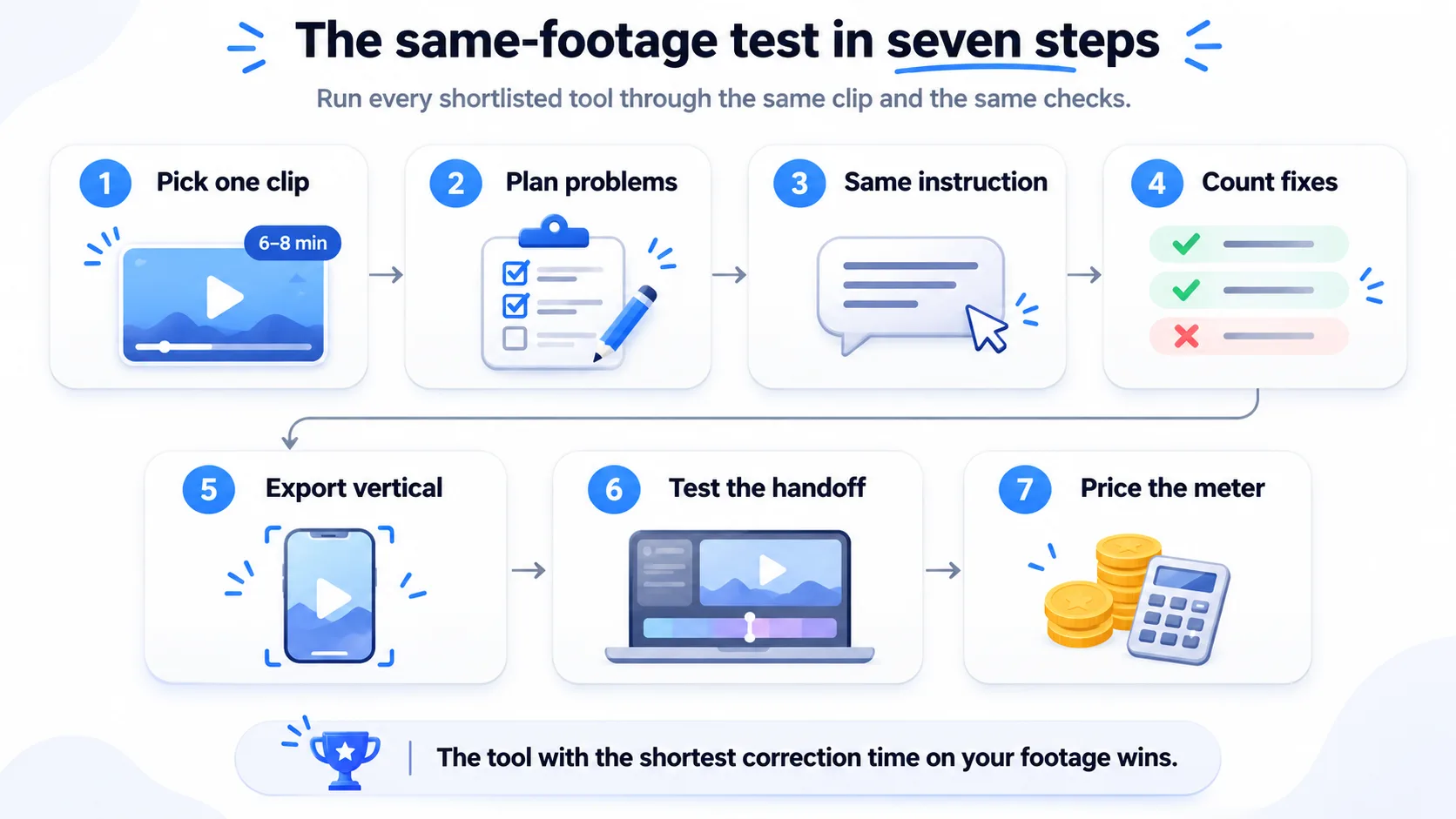
A free trial on a throwaway clip tells you little. One clip with planted problems tells you a great deal, and it is the test we would run before spending a dollar.
Pick one clip of 6 to 8 minutes from real work: A strong test clip contains a talking-head segment, two verbal mistakes, a 40 to 60 second tangent, background noise, three B-roll insert points and a vertical export requirement. Add your own product names, and if you script the clip, use a script runtime calculator to check that the words fit the runtime.
Write the answer key before opening any tool: Plan the clip as a shot list that marks where each planted problem occurs, so every editor is judged against the same checklist.
Give each shortlisted tool the same plain-language instruction: For example, ask it to remove filler words, cut the tangent, caption the video and export a vertical version. Start a timer at upload and stop it at the first rough cut.
Count corrections, not minutes: Log every wrong word, mid-sentence cut, late caption cue and missed tangent, then time how long each fix takes.
Export the vertical version: Check caption and subject placement in a phone-sized preview against Instagram Reel safe zones, and use an aspect ratio calculator to confirm the crop.
Test the handoff: Send the result into the editor that finishes your work and confirm the timeline arrives intact.
Price the meter against a real month: Convert your monthly footage into media hours, source minutes, seats or credits, then pick the plan that covers it.
Log each result in a sheet like this one.
Planted problem | What to check | Record |
|---|---|---|
Filler words and pauses | Were they removed without clipping word endings | Count of misses and bad cuts |
Long tangent | Did the tool flag or cut it | Yes or no |
Product names | Did captions spell them correctly | Number of corrections |
Background noise | Did audio cleanup help or distort | Better, same or worse |
Vertical export | Do captions and subject stay inside the safe area | Pass or fail |
Handoff | Does the timeline open intact in your finishing editor | Pass or fail |
The tool with the shortest correction time on your footage wins, whatever its demo reel suggests.
AI Video Editor Privacy, Data Security and Usage Rights
Cloud editors receive the footage itself, and agent-driven tools receive access to a project folder, so we would check these points before uploading unreleased work.
Retention and training terms: Descript treats project information as confidential and is SOC 2 Type II compliant, and its Enterprise plan adds AI and data controls including training opt-out and custom retention. Adobe does not use content from the Premiere assistant to train generative AI models, and partner model outputs are yours to vet for each project.
Plan-level differences: OpusClip is SOC II Type 2 compliant, and VEED's Enterprise plan adds privacy controls. Several controls sit on Enterprise tiers, so a Creator or Pro subscription may not include them.
Agent permissions: CoAnimator works through an AI agent that reads files and runs shell commands, and Premiere's assistant works on the project itself. Start Premiere's assistant in Always ask permission mode, run coding agents in a dedicated project folder, keep credentials out of it, and review changes before rendering.
Beta features: Keep unreleased footage out of beta tools until you have read their data terms.
If any of these points stays unresolved, keep the footage out of that tool until it is settled.
Conclusion
We expect these tools to keep moving from cleaning footage toward assembling it from a written brief, which turns your job from fixing cuts into judging them. AI-edited video fails in quiet ways, so the decision that matters most is what the video should argue, and that decision is the main difference between AI video and a studio-produced film.
We would get ready for that shift by keeping scripts, brand assets and raw footage in one named project folder, because an agent can only act on material it can find. Keep the test clip from this guide, and rerun it whenever a tool ships a new agent or changes its plan meters, so you compare correction counts instead of impressions.
When a demo, explainer or launch video has to ship on a deadline, hand us the brief. AllCapStudio produces product demo videos from brief to final delivery and uses AI tools where they shorten the work.
Written by the AllCapStudio team. We publish what we would tell you on a call, which occasionally costs us the project.
Read next
All articles- JournalAI Video Generator vs Video Production Company: Which Is Better in 2026?Which is better, an AI video generator or a video production company? Use a generator for low-stakes video and a team for…
- Journal6 Best Tutorial Video Maker Tools for SaaS (2026)Compare the 6 best tutorial video maker tools for SaaS onboarding in 2026, including pricing, features, limitations, and best use…
- Journal8 Best Free Image-to-Video AI Tools: Clips, Limits and Quality8 best free image to video AI tools compared by clips, quality, watermarks and commercial use. See which free plan fits your…