Journal22 min read
8 Best Free Image-to-Video AI Tools: Clips, Limits and Quality
8 best free image to video AI tools compared by clips, quality, watermarks and commercial use. See which free plan fits your project before you upload.
- Published
- Updated
- Written by
- AllCapStudio

Turning a still image into a video sounds quick until you try it. The face warps by the third second, the label on your product turns to gibberish, or the camera drifts somewhere you never asked it to go. Then the credits run out, and the one clip worth keeping arrives with a watermark.
The best free image to video AI tools remove most of that work. You upload your image, describe the motion in one sentence, and the model generates the clip with no animator or timeline.
The hard part is choosing one. Free plans hide their limits behind credit meters, plan cards disagree with the meters, and nobody tells you how many clips an allowance really buys. So we compared eight tools on clips per allowance, model quality and what you may do with the result, and we picked the ones worth your time.
How AI Image-to-Video Generators Work
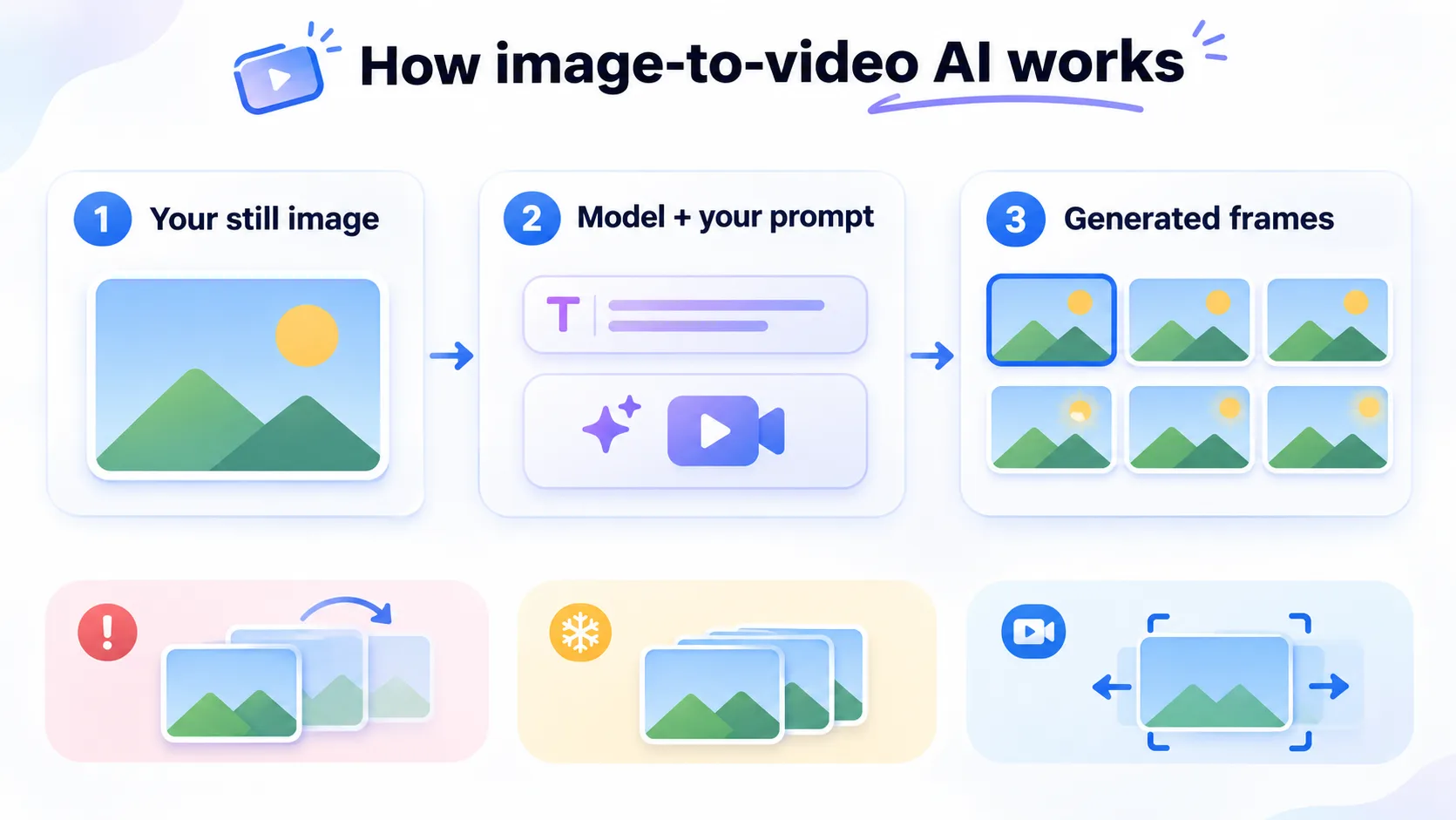
When you upload a still, the generator treats it as the first frame and builds the frames that follow from your image and your text prompt. Any free AI image to video generator works this way.
Image-to-Video vs Text-to-Video
Text-to-video AI generators build both the scene and the motion from your prompt. An image-to-video tool starts from a look you have already approved, so only the movement is left to invent. That makes it the better route for product shots, portraits and brand artwork, and it adds movement to stills inside a product demo video.
Common Limitations of Free AI Video Generators
Identity drift: Your subject's appearance changes across frames. Research on image-to-video models treats appearance drift and geometric distortion as persistent problems.
Frozen clips: Your image barely moves.
Unwanted camera drift: A slow pan or zoom appears that you never asked for. Teams that need exact camera moves use motion graphics software for product videos.
Every failed attempt spends your credits, so the number of clips matters more than the size of the allowance.
How We Tested the Free Image-to-Video Tools
We used four inputs, and each one feeds a column in the results table.
Credit prices: We divided each tool's free allowance by its published credit price per generation to get the clips you can make.
Quality ranking: Blind votes on videos made from the same input image rank the models by Elo score.
Free-account reports: Independent reviewers who opened free Kling and Runway accounts supply the credit meter readings, file specifications and access failures.
Usable clip: A clip with your subject intact, readable details and the motion you asked for. Our tables assume three attempts per usable clip.
The eight reviews below apply these inputs in the same order.
The 8 Best Free Image to Video AI Tools
Here are the eight tools, ordered by the job each does best. Each one covers what the tool is, how it works, its two main limits, its pricing and access, and a verdict on whether to pick it or skip it.
1. Google Flow
Google Flow is Google's creative studio for generating and editing video and images. Video comes from the Veo 3.1 family, which has Lite, Fast and Quality variants, and from Omni Flash. Frames to Video starts a clip from your image. Nano Banana Pro generates the still images you can use as start frames. A built-in agent plans and runs creative tasks inside your project. Flow runs on the web and mobile, and paid Google AI plans add monthly credits on top.
How it works
Account and credits: You receive 50 Flow credits a day with no subscription, a refreshing allowance you can plan around.
Model choice: Veo 3.1 Lite, Fast, Quality and Omni Flash 1.2 are priced differently and Google is retiring Fast and Quality, so you can pick the cheaper Lite model to stretch your credits.
Image input: Frames to Video starts your clip from a supplied image, so your approved look sets the first frame.
Clip length: Veo 3.1 Lite makes 4, 6 or 8 second clips at 720p, and Omni Flash 1.2 makes clips up to 10 seconds.
Quote before spending: The credit cost shows in your prompt box settings before you generate, and a request that returns two videos costs twice.
Where it falls short
Peak-hour limit: Without a subscription you may be unable to generate video between roughly 2 PM and 5 PM UTC.
Mid-table quality: The Veo 3.1 family ranks 27th to 29th in blind-vote quality, behind Seedance and Kling, and Lite stops at 720p.
Pricing and access
Free: 50 credits a day with no rollover. Veo 3.1 Lite costs 10 credits, Fast 20 and Quality 100.
Paid and access: Google AI Plus adds 200 credits a month and AI Pro adds 1,000. You need a Google account aged 18 or over.
Verdict
Flow gives you 5 Veo 3.1 Lite clips a day, since 50 credits cover five generations at 10 credits each. After 3 attempts per usable clip, that is about 1 usable clip a day. Veo 3.1 Lite scores 931 Elo, below Seedance 2.5 at 1161 and Kling 3.0 at 1000.
Pick Flow for volume. Skip it when you need top-ranked quality or must generate video at peak hours.
2. Dreamina
Dreamina is CapCut's AI creative platform for generating images and video. Its video models include Seedance 2.5, Seedance 2.0 and Seedance 2.0 Mini from ByteDance, and Seedance 2.0 Mini is the lower-credit option for short iterative clips. The video selector also lists Sora 2 and Veo 3.1. Image tools such as Seedream 5.0 Lite and Nano Banana Pro prepare your source image. The platform also offers text-to-video, reference-to-video and avatar tools. Paid plans add credits and remove the Dreamina watermark.
How it works
Image preparation: Seedream 5.0 Lite and Nano Banana Pro prepare your source image in the same workspace, so you can fix the still before you animate it.
Video model: Seedance 2.0 animates your image on the free workflow, and it is a top-three model in blind-vote quality.
Image role: Your uploaded image works as a first frame, an ending frame or a general reference, so you choose how the image steers the clip.
Quote before submitting: The credit cost and output count show before each generation, so you can stop before you spend.
Export check: Your downloaded file, and not the preview, shows the real dimensions, branding and audio, so you catch problems before delivery.
Where it falls short
No fixed clip price: Credit cost varies by model, mode and settings, so you cannot calculate the number of free clips you will get in advance.
Branded free output: Free clips carry the Dreamina watermark, and removal is a paid-plan feature.
Pricing and access
Free: 120 credits a day for U.S. accounts, and other regions receive different amounts each day.
Paid and access: Basic is US$15 a month for 1,575 credits. You need an account, and you should check which models your region can use.
Verdict
Seedance 2.0 runs your free workflow and ranks 3rd in blind-vote quality with 1140 Elo, only 21 points behind Seedance 2.5 in 1st place at 1161. That puts a top-three model behind a free daily allowance. No other tool in this list offers a higher-ranked model.
Pick Dreamina for the strongest free model. Skip it when you need a fixed price per clip or a clean export.
3. CoAnimator
CoAnimator is an agentic animation studio where an AI agent becomes your co-animator. You describe a product demo, launch video, tutorial or explainer, and an agent such as Claude Code or Codex researches your product, drafts the script and builds the video scene by scene. You edit recorded footage the same way, by description. Projects live as editable files, so you can change one scene and re-render later. It renders locally on your own Windows, macOS or Linux machine.
How it works
Connect an agent: Any AI agent that reads files and runs shell commands becomes your co-animator, including Claude Code, Codex, Gemini and OpenClaw, so you keep the agent you already use.
Describe and build: You describe the video, and the agent researches the product, drafts the script and builds scene by scene while you redirect in real time.
Templates and plugins: Templates set your starting style, and plugins add voice, music, screen capture, publishing and research, so a video never starts blank.
Edit footage: Describe the look you want, and effects, captions and overlays land on your recording.
Re-render: Change one scene and re-render, or render headless with the coa command-line tool, so an update takes one edit.
Where it falls short
Output depends on the agent: Quality varies with the agent you connect, your prompt and the direction you give.
No built-in analytics: You have to build viewer tracking separately, and extras may need a plugin or an external tool.
Pricing and access
Free: Free forever, with no credit meter and no clip limit.
Paid and access: A one-time lifetime license with no subscription. You need the desktop app for Windows, macOS or Linux and an AI agent such as Claude Code, Codex, Gemini or OpenClaw.
Verdict
CoAnimator has no credit meter, so no allowance caps how many videos you render. It does not appear in the blind-vote ranking, so its output quality depends on the agent you connect and the direction you give.
Pick CoAnimator for product demos, launch videos and tutorials that change with each release. Skip it when you want a hosted tool with no agent or setup.
4. Kling
Kling is Kuaishou's AI video generator. It turns your still image and a text prompt into a short clip with native audio on by default. Kling 3.0 arrived in February 2026, and Kling 4.0 is now the version the generator opens on. Kling 3.0 supports multi-shot storytelling that keeps a character consistent across up to six connected shots. Kling 3.0 ranks 23rd in blind-vote image-to-video quality, and Kling 4.0 is not yet ranked. Paid plans lift the watermark and the commercial-use exclusion.
How it works
Credit grant: Your free account receives credits at login, and an independent reviewer's account received 66, enough for one 1080p test clip.
Mode choice: 720p is open to you, while 1080p and 4K are marked VIP, with three 1080p trials so you can test the premium resolution before you pay.
Clip length: A slider runs from 3 to 15 seconds across 16:9, 1:1 and 9:16, so one tool covers landscape, square and vertical shots.
Price on the button: The credit cost updates as you change settings, so you see the price before you generate.
Audio and download: Native audio is on by default, the free queue estimates about two minutes, and your finished file downloads without a paywall.
Where it falls short
One clip a month: 66 credits cover a single five-second clip at either resolution, with no room for a retry.
Branded and non-commercial output: Your free clips carry a small Kling watermark, and the free plan excludes commercial use.
Pricing and access
Free: Login credits, 66 a month in the reviewer's account. Kling 3.0 charges 45 credits for five seconds at 720p, 60 at 1080p.
Paid and access: Standard is US$6.99 for the first month, then US$8.80, with no watermark and commercial use. You need an account.
Verdict
The reviewer's free account spent 60 of its 66 credits on one 5-second 1080p clip. The file measured 1920 by 1080 pixels at 5.04 seconds, with audio and a small corner watermark, after a two minute queue. Kling 3.0 ranks 23rd with 1000 Elo, and Kling 4.0 may price differently.
Pick Kling for one 1080p evaluation clip. Skip it when you need retries or commercial use.
5. Runway
Runway is a video generation platform with a built-in editor. Gen-4.5, its newer flagship, generates video from text. Runway's credit meter also sells third-party models such as Seedance, Kling and Veo. Runway files Gen-4 and Gen-4 Turbo under an older generation of models, and Aleph 2.0 edits existing video from keyframes. The editor lets you trim and assemble clips in the same app without exporting. Gen-4 Turbo is the model its free plan lists for image to video.
How it works
Required input: Gen-4 requires an input image from you, which becomes the first frame, so your approved look anchors the clip.
Prompt: Your text prompt describes the motion and camera behaviour for the uploaded frame, so you direct the movement.
Duration: You choose 5 or 10 seconds, and the duration sets the credit cost, so a shorter clip leaves credits for retries.
Model and credit cost: Gen-4 Turbo costs 5 credits per second and Gen-4 costs 12, and Runway recommends testing in Turbo before you switch to Gen-4, so a draft costs 25 credits.
Editing: Your free plan includes three video editor projects and 5GB of storage, so you can trim and assemble clips without leaving the app.
Where it falls short
A finite grant: Your 125 free credits are one-time and do not renew, and you cannot purchase credits on the Free plan.
Watermark on every video: Every free video carries a Runway watermark, and removal starts at the Standard plan.
Pricing and access
Free: 125 credits once. Gen-4 Turbo costs 25 credits for five seconds and 50 for ten.
Paid and access: Standard is US$15 a month (US$12 billed yearly) for 625 credits with no watermark. Confirm free video access in your account first.
Verdict
Your 125 credits buy five 5-second Gen-4 Turbo clips, or about 1 usable clip after 3 attempts each. Gen-4 Turbo is unranked in the quality table below.
Runway's Free plan includes Gen-4 Turbo image to video, yet an independent reviewer hit an upgrade wall on video and saw 480 credits against the 125 published.
Pick Runway for the built-in editor. Skip it when you need predictable free video.
6. Adobe Firefly
Adobe Firefly is Adobe's generative AI app for images, video and audio. Adobe says its own Firefly models are trained on licensed and public domain content. The app also hosts partner models from Google, OpenAI, Runway, Kling and Luma, and a Firefly Video Model sits beside them. Generative credits are shared across Firefly and Creative Cloud apps such as Photoshop and Premiere. Firefly Boards add a workspace for ideation. Paid plans raise the credit allowance and the number of five-second videos.
How it works
Account: An Adobe account gives you access to free daily generations, so you can start without a paid plan.
Image to video: Firefly includes a Generate Video from Image feature alongside text-to-video, so your still becomes a clip in the same app.
Model choice: You get limited access to Adobe and partner models, including Luma Ray 3.14, so you can compare models in one workspace.
Clip length and credits: Videos are counted in five-second units, and video draws on generative credits on paid plans, so you can budget each clip in credits.
Editing and provenance: A multitrack video editor is included on the free plan, and Content Credentials attach to your outputs automatically, so every clip carries its provenance.
Where it falls short
Unpublished free count: Adobe does not state how many free daily generations you get, so you cannot calculate your clips.
Assurance limited to Firefly models: The commercial-use statement covers Firefly models only. Partner model outputs in Firefly are your responsibility.
Pricing and access
Free: Limited daily generations for images and video.
Paid and access: Standard is US$9.99 a month for 2,000 credits, up to 20 five-second videos. Pro is US$19.99 for 4,000 credits, up to 40 videos. You need an Adobe account to start.
Verdict
At Standard prices a usable clip costs about US$1.50, which is 50 cents a clip multiplied by three attempts. No Firefly model appears in the quality table below, so its output quality has no blind-vote score. Adobe states that Firefly model outputs are safe for commercial use.
Pick Firefly for brand work. Skip it when you need a published daily count or a quality ranking.
7. PixVerse
PixVerse is an AI video generation and creative production platform founded in 2023. It is operated by AIVORA PTE. LTD. from Singapore. Its own models are PixVerse V6, PixVerse C1 for cinematic and visual-effects work, and R2 for real-time interactive worlds. The web app also offers third-party models, including Seedance, MiniMax, Kling and Wan. Canvas connects prompts, references and outputs in a node-based project. Image to Video, transitions, video extension and camera motion control are separate tools in the catalogue.
How it works
Image to Video: PixVerse has a dedicated Image to Video product alongside text-to-video.
Model choice: The model selector holds PixVerse V6 and third-party families such as Seedance, MiniMax H3 and Kling, so you can compare models in one place.
Clip specification: V6 documents durations from 1 to 15 seconds and resolution up to 1080p, so you can match length and resolution to the shot.
Camera, shots and audio: V6 supports camera direction, multi-shot options and optional generated audio, depending on the mode, so you can plan camera moves and shot sequences.
Free limits: Basic outputs up to 540p and runs 2 generations at once, and your daily credits renew at 00:00 UTC, which gives you a fresh allowance every day.
Where it falls short
Small daily pool: Your 30 daily credits are half the 60 paid plans receive, and the price per clip varies by model, resolution and duration.
Watermarked, non-commercial output: Free clips carry a watermark, and PixVerse says free-service content may not be used commercially.
Pricing and access
Free: 60 initial credits and 30 daily credits.
Paid and access: Standard is US$10 a month (US$8 billed yearly) for 1,200 credits every 30 days plus 60 daily, watermark-free up to 720p. You need an account on web, iOS or Android.
Verdict
PixVerse V6 scores 959 Elo, below Kling 3.0 at 1000 and Seedance 2.0 at 1140, so you trade some quality for a daily allowance and a selector that holds Seedance, MiniMax and Kling. Your daily credits cannot be turned into a clip count.
Pick PixVerse for daily experiments across PixVerse V6 and third-party models. Skip it when you need top-ranked quality or commercial use.
8. Vidu
Vidu is an AI video generator from Shengshu Technology. It offers Image to Video, Text to Video and Reference to Video modes. A Vidu Agent, templates and an API platform sit alongside them. Its current models are Vidu Q3 and the Vidu Q4 preview, which is the first public preview of its next flagship model. Vidu Q3 generates dialogue, sound effects and music in the same pass as the video. Paid plans remove the watermark and allow commercial use.
How it works
Image input: Image to Video is included on your free plan, so a still photo becomes a short clip at no charge and you can test an image before paying.
Prompt: Your text prompt describes the motion, and running the same input twice shows you whether the result is stable.
Settings: Duration and quality settings set the credit price, and a 4-second standard-quality clip costs about 5 credits, so a short test costs little.
Credit pool: Your free credits renew each month, and each generation spends credits according to its duration and quality settings, so a short clip stretches the pool.
Reference mode: Reference to Video builds a clip around reference images you supply, so the clip follows your references.
Where it falls short
Small monthly pool: A longer or higher-quality setting spends your allowance faster, and unused credits do not roll over.
Watermarked, personal-use output: Free clips are capped at 720p, carry a lower-right watermark and are licensed for personal, non-commercial use only.
Pricing and access
Free: A recurring monthly credit pool, roughly 10 to 16 clips, at about 5 credits for a 4-second standard clip.
Paid and access: Paid plans remove the watermark and allow commercial use, so confirm current prices in your account. You need an account.
Verdict
Vidu's pool buys you 10 to 16 clips a month, or 3 to 5 usable clips once you count three attempts per clip. Vidu Q4 Preview ranks 20th with 1030 Elo, and Vidu does not state which model runs on the free plan.
Pick Vidu for a monthly evaluation across 10 to 16 clips. Skip it when you need a clean export or commercial use.
Free Image-to-Video AI Tools Compared
Google Flow has the largest published clip count and Dreamina's models rank highest, while Kling, PixVerse and Vidu all exclude commercial use on free plans.
Tool | Free allowance | Clips it buys | Quality (Elo) | Watermark on free | Commercial use on free |
|---|---|---|---|---|---|
Google Flow | 50 credits a day | 5 Lite clips a day, about 1 usable | Veo 3.1 Lite 931 | Not confirmed | Not confirmed |
Dreamina | 120 credits a day (U.S.) | Check the quote in your account | Seedance 2.0 1140 | Removal is a paid feature | Not confirmed |
CoAnimator | Free forever, no credits | No credit cap | Not ranked | Yes, small mark | Not applicable |
Kling | 66 credits a month (one reviewer's account) | 1 clip a month | Kling 3.0 1000 | Yes, small corner mark | Excluded |
Runway | 125 credits, once | 5 five-second clips, about 1 usable | Not in the ranking | Yes, every video | Not stated for Free |
Adobe Firefly | Limited daily generations | Count not published | Not in the ranking | Not confirmed | Adobe states Firefly model outputs are safe |
PixVerse | 60 initial credits, then 30 a day | Check the quote in your account | V6 959 | Yes | PixVerse states free-service content may not be used commercially |
Vidu | Monthly credit pool | 10 to 16 clips, 3 to 5 usable | Q4 Preview 1030, Q3 Pro 926 | Yes, lower-right corner | Personal use only |
Quality is the Elo score from blind votes on videos made from the same input image, as ranked by Artificial Analysis, and higher means voters prefer the model. Seedance 2.5 ranks 1st at 1161. Usable clips assume three attempts each. The scores rate the models and not your free modes, and Vidu does not state which of its models runs on the free plan.
Common Free Plan Limitations
Credits without a clip: Flow can block you at peak hours, and a reviewer's free Runway account hit an upgrade wall on video.
Plan card against meter: Kling's Standard card equates 660 credits with 33 videos, and the generator charges enough for about 14. Runway's published 125 credits did not match the 480 in that reviewer's account.
Plan cards and credit meters disagree, so read the live credit quote before every generation.
Free AI Video Generators Without Watermarks and Commercial Restrictions
No free generator in this list is confirmed watermark-free, so plan for a mark on every clip and check three things before you publish.
Exports: Download one test clip from Google Flow and Adobe Firefly first, because their free watermark status is unconfirmed. Every other generator here marks free clips.
Licence: Treat free clips as personal use unless the free plan says otherwise, and confirm the terms for any partner model you use inside Firefly.
Uploads: Your source image leaves your device and lands on a third party's servers, so read the privacy and content terms before you upload client artwork, unreleased products or identifiable people.
A free photo to video AI that exports clean footage with full commercial rights is the exception. Where AI-generated footage appears in something we deliver, we say so in the handover, and we recommend you do the same when AI video and studio production share a project.
Which Free Image-to-Video AI Tool Should You Choose?
Our default pick is Google Flow, because it is the only tool here with a published credit price and a daily refresh that let you count five clips a day. Pick a different tool when your job changes.
Largest published clip count: Choose Google Flow when you want to iterate on one image. You can plan five Lite clips a day before you sign up, which no other tool here allows.
Strongest free model: Choose Dreamina when quality matters most. No other tool in this list offers a higher-ranked model, and you should check the credit quote before each generation.
Editable product demos and tutorials: Choose CoAnimator when a UI change should mean re-rendering one scene instead of rebuilding the video. It brings agentic video editing to teams that maintain product demos across releases.
Brand and client work: Choose Adobe Firefly when licensing comes first, since Kling, PixVerse and Vidu exclude commercial use on free plans.
A Trial Before You Pay
Choose Kling for one 1080p evaluation clip, Runway for its editor once you confirm video access in your account, PixVerse for daily experiments across PixVerse V6 and third-party models, or Vidu for a monthly pool of 10 to 16 clips.
When a clip is headed for publication, move to a paid tier or a studio, especially for video ads and brand films. Before you spend your first credit, plan the frames you need with a shot list builder and set your aspect ratio, since a wrong crop wastes the attempt you cannot retry. A clip headed for Reels also needs the right Instagram Reel size and safe zones.
Future of Free AI Image-to-Video Generators
Free tiers are shifting toward cheaper models and per-second pricing. Google is retiring Veo 3.1 Fast and Quality in Flow, Kling has moved to version 4.0, and Vidu has opened a Q4 preview, so the tool at the top of a table today can lose its free tier or its best model within months. Protect your project with three habits. Read the credit quote for your exact settings and divide your balance by it, multiply by three to estimate your usable clips, and download one clip to check the watermark, resolution and licence before you build a workflow around it. Sketch each clip on a storyboard template first, so no credit goes to a frame you do not need.
Free tiers suit testing and early drafts. Entry paid plans for the generators with published prices run from about US$9 to US$15 a month, and a clip that has to carry your brand belongs with a studio. We plan and build animation and motion work for products and brands at AllCapStudio, from storyboard to final cut.
Written by the AllCapStudio team. We publish what we would tell you on a call, which occasionally costs us the project.
Read next
All articles- JournalAI Video Generator vs Video Production Company: Which Is Better in 2026?Which is better, an AI video generator or a video production company? Use a generator for low-stakes video and a team for…
- Journal6 Best Tutorial Video Maker Tools for SaaS (2026)Compare the 6 best tutorial video maker tools for SaaS onboarding in 2026, including pricing, features, limitations, and best use…
- JournalShort-Form Video Marketing: How to Turn One Shoot Into a Content SeriesShort-form video production stacks scripting, casting, a shoot day, the edit, captions, exports in 9:16 and 4:5, and every round of…